> ## Documentation Index
> Fetch the complete documentation index at: https://docs.cloudcapital.co/llms.txt
> Use this file to discover all available pages before exploring further.
# Engineering Initiatives
Initiatives allow you to incorporate forward-looking business context into your forecast. They are a powerful way to represent planned changes — such as infrastructure migrations, new product launches, service deprecations, or capacity events — and have those changes reflected in your cloud cost projections before they happen.
 ***
## How Initiatives Work
Each Initiative applies a set of cost adjustments (+/- changes) to one or more Billing Periods. Cloud Capital takes the baseline forecast for the affected mapping and applies the Initiative's impact on top of it. The resulting changes are visible in the [Forecast table](forecast-controls), where Initiative-driven months show the adjusted projected spend.
A single Initiative can affect multiple mappings and include both positive and negative cost impacts — useful for representing complex projects that increase spend in one area while reducing it in another.
### Initiative Fields
**Name**
Give the Initiative a clear, descriptive name so that both your engineering and finance teams understand what it represents at a glance.
**Type**
Controls how the Initiative's impact is expressed:
* **Absolute** — a fixed dollar amount added or subtracted per Billing Period (e.g., −\$5,000/month)
* **Percentage** — a percentage of the baseline forecast to add or subtract (e.g., −25%)
The baseline the percentage applies against is determined by the [Projection Type](projection-types) set on the affected Cost Layer.
**Permanent Change**
A checkbox that controls whether the Initiative's effect persists after its active period ends.
* **Checked (Permanent)** — the final month's value repeats indefinitely. Use this for changes that permanently alter your infrastructure, such as completing a migration or decommissioning a service.
* **Unchecked (Temporary)** — effects are limited to the Initiative's active months only, then the forecast returns to baseline. Use this for one-time events such as a launch spike or seasonal capacity increase.
**Color**
A color label used to visually identify the Initiative in forecast charts and the initiatives table.
**Status**
Controls whether the Initiative is included in forecast calculations:
* **Draft** — work in progress, not yet included in the forecast
* **Committed** — active and included in the forecast
* **Completed** — the Initiative has concluded; retained for historical reference
* **Abandoned** — no longer relevant, excluded from the forecast
Only **Committed** Initiatives impact the forecast. Draft, Completed, and Abandoned Initiatives do not affect forecast calculations.
**Timeframe**
Start Month and Duration define the period during which the Initiative is active. For Temporary Initiatives, these are the only Billing Periods with impact calculated. Adjusting the Start Month shifts all months of the Initiative together.
***
## Mappings: Targeting an Initiative's Impact
Once an Initiative is created, you define *what* it affects by adding one or more **Mappings**. Click **Add Mapping** on any Initiative to choose the targeting type.
Cloud Capital supports the following mapping types:
| Mapping Type | What It Targets | Best Used For |
| ----------------- | -------------------------------------------------------------------------- | -------------------------------------------------------------- |
| **Cost Layer** | An entire [Cost Layer](cost-layers) (e.g., Production, Staging) | Changes that align to a business unit or environment boundary |
| **Resource** | Specific AWS resources by attribute (service, region, instance type, etc.) | Infrastructure migrations, right-sizing, service-level changes |
| **Account** | A specific AWS account | Account-level changes or consolidations |
| **Tag** | Resources sharing a specific AWS tag | Team- or project-level cost changes tracked via tagging |
| **Cost Category** | An AWS Cost Category grouping | Changes aligned to custom AWS cost categorization |
A single Initiative can have multiple Mappings — for example, a migration that reduces cost in one Cost Layer while increasing it in another.
***
## Resource Mappings
Resource mappings allow you to scope an Initiative to specific AWS resources by their attributes, rather than an entire Cost Layer. Cloud Capital automatically calculates what fraction of spend matches your resource filter and applies the Initiative's impact proportionally.
This is especially useful for:
* **Infrastructure migrations** — model the cost impact of moving off specific instance types or services
* **Right-sizing projects** — target oversized instances in specific regions without restructuring your Cost Layer taxonomy
* **Cross-cutting optimizations** — apply a single Initiative across multiple Cost Layers where the same resource type exists
You can filter by any combination of the following dimensions:
| Dimension | Description | Example Values |
| ------------------- | ---------------------------------- | --------------------------- |
| **Service** | The AWS cloud service | Amazon RDS, Amazon EC2 |
| **Resource Family** | Broad resource type grouping | Database, Compute, Storage |
| **Region** | Geographic AWS region | `eu-west-1`, `us-east-1` |
| **Instance Type** | Specific instance or resource type | `t3.large`, `db.r5.2xlarge` |
| **Usage Type** | AWS usage type code | `EU-RDS:db.t3.large` |
Multiple filter conditions are combined with AND logic — all conditions must match for a resource's spend to be included.
You can also combine a Resource mapping with a Cost Layer mapping on the same Initiative. This scopes the Initiative to matching resources *within* that specific Cost Layer, giving you both business context and technical precision.
**Example:** Production Cost Layer + Resource mapping for RDS `t3.large` in `eu-west-1` → targets only those specific RDS instances within Production, leaving all other Production resources and other environments unaffected.
Resource filter values are drawn from your actual AWS cost data. The picker shows only values present in your imported cost history, sorted by spend impact (highest first).
***
## Creating a Resource-Based Initiative
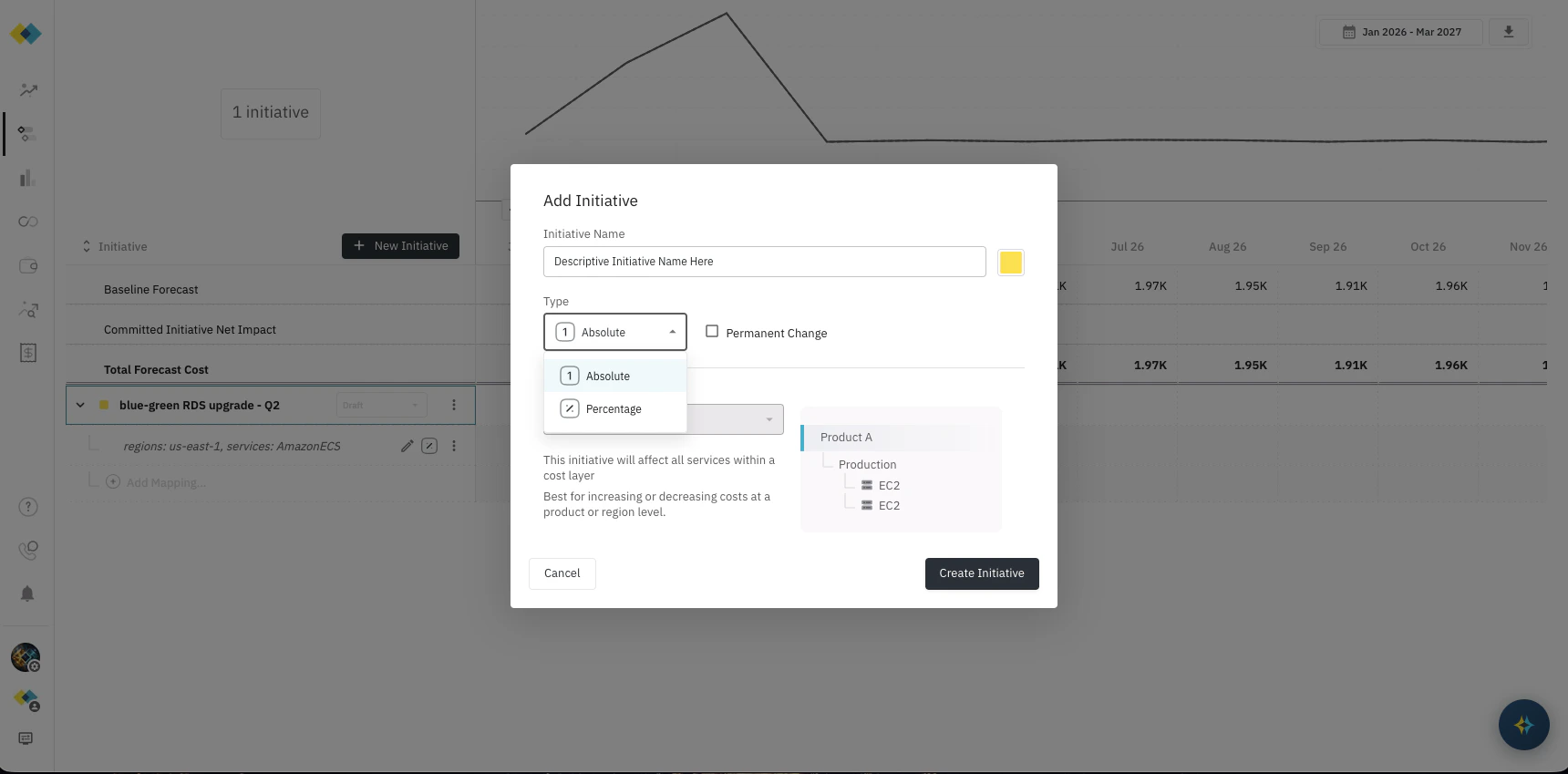
Navigate to **Initiatives** and click **+ New Initiative**. Provide a descriptive name, select the Type (Absolute or Percentage), and check **Permanent Change** if the effect should persist after the active period ends. Choose a color to identify the Initiative in charts, then click **Create Initiative**. The remaining steps are completed by editing the newly created Initiative row. To edit or delete an Initiative at any time, click the three-dot menu on its row and select **Edit** or **Delete**.
***
## How Initiatives Work
Each Initiative applies a set of cost adjustments (+/- changes) to one or more Billing Periods. Cloud Capital takes the baseline forecast for the affected mapping and applies the Initiative's impact on top of it. The resulting changes are visible in the [Forecast table](forecast-controls), where Initiative-driven months show the adjusted projected spend.
A single Initiative can affect multiple mappings and include both positive and negative cost impacts — useful for representing complex projects that increase spend in one area while reducing it in another.
### Initiative Fields
**Name**
Give the Initiative a clear, descriptive name so that both your engineering and finance teams understand what it represents at a glance.
**Type**
Controls how the Initiative's impact is expressed:
* **Absolute** — a fixed dollar amount added or subtracted per Billing Period (e.g., −\$5,000/month)
* **Percentage** — a percentage of the baseline forecast to add or subtract (e.g., −25%)
The baseline the percentage applies against is determined by the [Projection Type](projection-types) set on the affected Cost Layer.
**Permanent Change**
A checkbox that controls whether the Initiative's effect persists after its active period ends.
* **Checked (Permanent)** — the final month's value repeats indefinitely. Use this for changes that permanently alter your infrastructure, such as completing a migration or decommissioning a service.
* **Unchecked (Temporary)** — effects are limited to the Initiative's active months only, then the forecast returns to baseline. Use this for one-time events such as a launch spike or seasonal capacity increase.
**Color**
A color label used to visually identify the Initiative in forecast charts and the initiatives table.
**Status**
Controls whether the Initiative is included in forecast calculations:
* **Draft** — work in progress, not yet included in the forecast
* **Committed** — active and included in the forecast
* **Completed** — the Initiative has concluded; retained for historical reference
* **Abandoned** — no longer relevant, excluded from the forecast
Only **Committed** Initiatives impact the forecast. Draft, Completed, and Abandoned Initiatives do not affect forecast calculations.
**Timeframe**
Start Month and Duration define the period during which the Initiative is active. For Temporary Initiatives, these are the only Billing Periods with impact calculated. Adjusting the Start Month shifts all months of the Initiative together.
***
## Mappings: Targeting an Initiative's Impact
Once an Initiative is created, you define *what* it affects by adding one or more **Mappings**. Click **Add Mapping** on any Initiative to choose the targeting type.
Cloud Capital supports the following mapping types:
| Mapping Type | What It Targets | Best Used For |
| ----------------- | -------------------------------------------------------------------------- | -------------------------------------------------------------- |
| **Cost Layer** | An entire [Cost Layer](cost-layers) (e.g., Production, Staging) | Changes that align to a business unit or environment boundary |
| **Resource** | Specific AWS resources by attribute (service, region, instance type, etc.) | Infrastructure migrations, right-sizing, service-level changes |
| **Account** | A specific AWS account | Account-level changes or consolidations |
| **Tag** | Resources sharing a specific AWS tag | Team- or project-level cost changes tracked via tagging |
| **Cost Category** | An AWS Cost Category grouping | Changes aligned to custom AWS cost categorization |
A single Initiative can have multiple Mappings — for example, a migration that reduces cost in one Cost Layer while increasing it in another.
***
## Resource Mappings
Resource mappings allow you to scope an Initiative to specific AWS resources by their attributes, rather than an entire Cost Layer. Cloud Capital automatically calculates what fraction of spend matches your resource filter and applies the Initiative's impact proportionally.
This is especially useful for:
* **Infrastructure migrations** — model the cost impact of moving off specific instance types or services
* **Right-sizing projects** — target oversized instances in specific regions without restructuring your Cost Layer taxonomy
* **Cross-cutting optimizations** — apply a single Initiative across multiple Cost Layers where the same resource type exists
You can filter by any combination of the following dimensions:
| Dimension | Description | Example Values |
| ------------------- | ---------------------------------- | --------------------------- |
| **Service** | The AWS cloud service | Amazon RDS, Amazon EC2 |
| **Resource Family** | Broad resource type grouping | Database, Compute, Storage |
| **Region** | Geographic AWS region | `eu-west-1`, `us-east-1` |
| **Instance Type** | Specific instance or resource type | `t3.large`, `db.r5.2xlarge` |
| **Usage Type** | AWS usage type code | `EU-RDS:db.t3.large` |
Multiple filter conditions are combined with AND logic — all conditions must match for a resource's spend to be included.
You can also combine a Resource mapping with a Cost Layer mapping on the same Initiative. This scopes the Initiative to matching resources *within* that specific Cost Layer, giving you both business context and technical precision.
**Example:** Production Cost Layer + Resource mapping for RDS `t3.large` in `eu-west-1` → targets only those specific RDS instances within Production, leaving all other Production resources and other environments unaffected.
Resource filter values are drawn from your actual AWS cost data. The picker shows only values present in your imported cost history, sorted by spend impact (highest first).
***
## Creating a Resource-Based Initiative
Navigate to **Initiatives** and click **+ New Initiative**. Provide a descriptive name, select the Type (Absolute or Percentage), and check **Permanent Change** if the effect should persist after the active period ends. Choose a color to identify the Initiative in charts, then click **Create Initiative**. The remaining steps are completed by editing the newly created Initiative row. To edit or delete an Initiative at any time, click the three-dot menu on its row and select **Edit** or **Delete**.
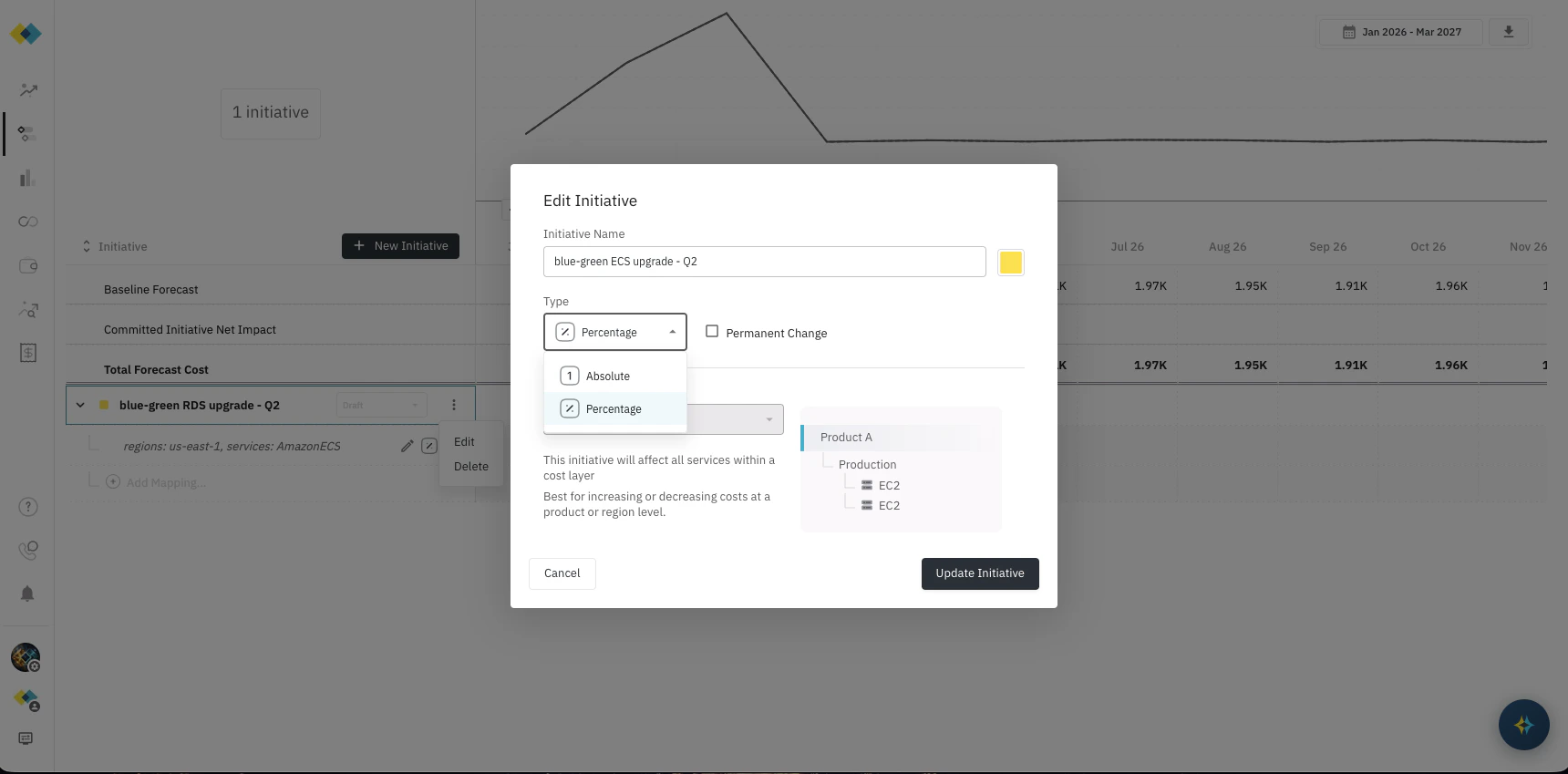 Click **Add Mapping** on the Initiative row and select **Resource**. Use the dimension picker to build your filter — choose the dimensions relevant to your project (service, region, instance type, etc.) and select the applicable values. Add multiple conditions as needed; all conditions are combined with AND logic.
If you want to limit the Initiative to a specific Cost Layer, click **Add Mapping** again and select **Cost Layer**. Combined with your Resource mapping, this scopes the Initiative to matching resources within that Cost Layer only.
Enter the impact value for each Billing Period in the Initiative's active months. If you chose **Percentage**, enter a number representing the percentage change — for example, **30** to add 30%, or **−30** to reduce by 30%. The application will automatically apply that percentage to the actual spend matching your mapping filter and calculate the dollar impact for you — no manual calculation needed. If you chose **Absolute**, enter a positive or negative dollar amount — for example, **5000** to add \$5,000, or **−5000** to reduce by \$5,000.
Mark the Initiative as **Committed** to include it in your forecast. The forecast will immediately reflect the projected impact.
***
## Examples
Any planned change with an impact on your cloud costs can be represented as an Initiative:
| Scenario | Type | Permanent Change | Mapping |
| ------------------------------------------ | ------------------------------------------------------------- | ---------------- | ---------------------- |
| Deprecate a service | Absolute, negative — equal to the monthly cost of the service | Yes | Cost Layer or Resource |
| New product launch | Percentage, positive — estimated growth rate | Yes | Cost Layer |
| One-time load event (e.g., seasonal spike) | Percentage, positive | No | Cost Layer |
| Infrastructure migration (phased) | Percentage, negative — step-down each month as workloads move | Yes | Resource |
| Right-sizing specific instance types | Percentage, negative | Yes | Resource |
***
## Example Walkthrough: RDS PostgreSQL Migration off t3.large
The following example shows how to model a phased migration of RDS PostgreSQL instances away from `t3.large` in the `eu-west-1` region, where each month another quarter of the instances are replaced until the migration is complete.
**Scenario:** Your engineering team is migrating Production RDS PostgreSQL workloads in EU West 1 off `t3.large` instances over four months (May through August 2026). Each month roughly another quarter of the instances are migrated to more cost-effective alternatives, so the cost reduction accumulates month by month until fully complete.
### Step 1 — Create the Initiative
Click **+ New Initiative** and fill in the following:
| Field | Value |
| -------------------- | ---------------------------------------------------------------------------------------- |
| **Name** | RDS PostgreSQL t3.large Migration — EU West 1 |
| **Type** | Percentage |
| **Permanent Change** | Checked *(migration is complete after August; the cost reduction persists indefinitely)* |
| **Color** | Your choice |
### Step 2 — Add a Resource Mapping
Click **Add Mapping** and select **Resource**. Configure the following dimensions to scope the Initiative to the affected infrastructure:
| Dimension | Value |
| ----------------- | ----------- |
| **Service** | Amazon RDS |
| **Instance Type** | `t3.large` |
| **Region** | `eu-west-1` |
### Step 3 — Add a Cost Layer Mapping
Click **Add Mapping** and select **Cost Layer**, then choose **Production**. This ensures the Initiative applies only to Production RDS costs — Non-Production and other environments are unaffected.
### Step 4 — Set Monthly Impact Values
Each month represents cumulative migration progress. By August, all targeted `t3.large` instances have been replaced and their spend is fully eliminated:
| Billing Period | Percentage Impact | What It Represents |
| -------------- | ----------------- | ------------------------------------------------------ |
| May 2026 | −25% | First quarter of instances migrated |
| June 2026 | −50% | Half of instances migrated |
| July 2026 | −75% | Three quarters of instances migrated |
| August 2026 | −100% | Migration complete — all t3.large RDS spend eliminated |
Because **Permanent Change** is checked, the −100% reduction from August carries forward indefinitely in the forecast, reflecting that the migration is a lasting infrastructure change.
### Step 5 — Set Status to Committed
Mark the Initiative as **Committed**. Your forecast will now show the progressive reduction in Production RDS costs in `eu-west-1` across the migration timeline, giving both your engineering and finance teams a shared, data-grounded view of when the savings will materialize.
Click **Add Mapping** on the Initiative row and select **Resource**. Use the dimension picker to build your filter — choose the dimensions relevant to your project (service, region, instance type, etc.) and select the applicable values. Add multiple conditions as needed; all conditions are combined with AND logic.
If you want to limit the Initiative to a specific Cost Layer, click **Add Mapping** again and select **Cost Layer**. Combined with your Resource mapping, this scopes the Initiative to matching resources within that Cost Layer only.
Enter the impact value for each Billing Period in the Initiative's active months. If you chose **Percentage**, enter a number representing the percentage change — for example, **30** to add 30%, or **−30** to reduce by 30%. The application will automatically apply that percentage to the actual spend matching your mapping filter and calculate the dollar impact for you — no manual calculation needed. If you chose **Absolute**, enter a positive or negative dollar amount — for example, **5000** to add \$5,000, or **−5000** to reduce by \$5,000.
Mark the Initiative as **Committed** to include it in your forecast. The forecast will immediately reflect the projected impact.
***
## Examples
Any planned change with an impact on your cloud costs can be represented as an Initiative:
| Scenario | Type | Permanent Change | Mapping |
| ------------------------------------------ | ------------------------------------------------------------- | ---------------- | ---------------------- |
| Deprecate a service | Absolute, negative — equal to the monthly cost of the service | Yes | Cost Layer or Resource |
| New product launch | Percentage, positive — estimated growth rate | Yes | Cost Layer |
| One-time load event (e.g., seasonal spike) | Percentage, positive | No | Cost Layer |
| Infrastructure migration (phased) | Percentage, negative — step-down each month as workloads move | Yes | Resource |
| Right-sizing specific instance types | Percentage, negative | Yes | Resource |
***
## Example Walkthrough: RDS PostgreSQL Migration off t3.large
The following example shows how to model a phased migration of RDS PostgreSQL instances away from `t3.large` in the `eu-west-1` region, where each month another quarter of the instances are replaced until the migration is complete.
**Scenario:** Your engineering team is migrating Production RDS PostgreSQL workloads in EU West 1 off `t3.large` instances over four months (May through August 2026). Each month roughly another quarter of the instances are migrated to more cost-effective alternatives, so the cost reduction accumulates month by month until fully complete.
### Step 1 — Create the Initiative
Click **+ New Initiative** and fill in the following:
| Field | Value |
| -------------------- | ---------------------------------------------------------------------------------------- |
| **Name** | RDS PostgreSQL t3.large Migration — EU West 1 |
| **Type** | Percentage |
| **Permanent Change** | Checked *(migration is complete after August; the cost reduction persists indefinitely)* |
| **Color** | Your choice |
### Step 2 — Add a Resource Mapping
Click **Add Mapping** and select **Resource**. Configure the following dimensions to scope the Initiative to the affected infrastructure:
| Dimension | Value |
| ----------------- | ----------- |
| **Service** | Amazon RDS |
| **Instance Type** | `t3.large` |
| **Region** | `eu-west-1` |
### Step 3 — Add a Cost Layer Mapping
Click **Add Mapping** and select **Cost Layer**, then choose **Production**. This ensures the Initiative applies only to Production RDS costs — Non-Production and other environments are unaffected.
### Step 4 — Set Monthly Impact Values
Each month represents cumulative migration progress. By August, all targeted `t3.large` instances have been replaced and their spend is fully eliminated:
| Billing Period | Percentage Impact | What It Represents |
| -------------- | ----------------- | ------------------------------------------------------ |
| May 2026 | −25% | First quarter of instances migrated |
| June 2026 | −50% | Half of instances migrated |
| July 2026 | −75% | Three quarters of instances migrated |
| August 2026 | −100% | Migration complete — all t3.large RDS spend eliminated |
Because **Permanent Change** is checked, the −100% reduction from August carries forward indefinitely in the forecast, reflecting that the migration is a lasting infrastructure change.
### Step 5 — Set Status to Committed
Mark the Initiative as **Committed**. Your forecast will now show the progressive reduction in Production RDS costs in `eu-west-1` across the migration timeline, giving both your engineering and finance teams a shared, data-grounded view of when the savings will materialize.