> ## Documentation Index
> Fetch the complete documentation index at: https://docs.cloudcapital.co/llms.txt
> Use this file to discover all available pages before exploring further.
# Integrate GCP Data
> Connect your Google Cloud billing data to Cloud Capital by granting read access to your BigQuery billing export. GCP support is currently in Beta.
**GCP support is in Beta.** To enroll, request access from your Cloud Capital Customer Success Manager. Once your account is enabled, **GCP** appears as an option on the New Integration page. If you don't see it yet, reach out to your Customer Success Manager.
Cloud Capital reads your Google Cloud billing data directly from a **BigQuery billing export table** that you own. You provide three coordinates — project, dataset, and table — and grant Cloud Capital's service account read-only access. Setup takes about 15 minutes, plus time for GCP to populate the export if you're enabling it for the first time.
***
### What Cloud Capital accesses
Cloud Capital reads from a single BigQuery table using a service account that is unique to your environment. Two IAM grants are required:
| Purpose | Role | Scope |
| ----------------------------------- | --------------------------- | ------------------------------------- |
| Read your billing export data | `roles/bigquery.dataViewer` | The billing export **table only** |
| Run read queries against that table | `roles/bigquery.jobUser` | The **project** containing the export |
Both grants are strictly **read-only**. Cloud Capital cannot create, modify, or delete any resources in your Google Cloud environment, and the Data Viewer grant is scoped to your billing export table — not your wider BigQuery data.
### What's available with GCP today
GCP data flows into the same forecasting and cost analysis features you use for AWS, with some areas still AWS-only during Beta:
| Available for GCP | Not yet available for GCP |
| ---------------------------------------------------- | ------------------------- |
| Cost forecasting, cost insights, and cost allocation | Cost Optimization |
***
### Before you begin
* **GCP permissions** — You can enable billing export to BigQuery and grant IAM roles on the export table and its project.
* **Export type** — Use the **Standard usage cost** billing export to BigQuery, not the detailed / resource-level export.
* **Enable early** — GCP only exports data from the moment the export is enabled forward. If you're setting this up for the first time, enable the export as early as possible so history begins accumulating.
### Setup
In Cloud Capital, go to **Cost Allocation → Connect Cloud Provider**, then click **Create New Integration** and choose **GCP**.
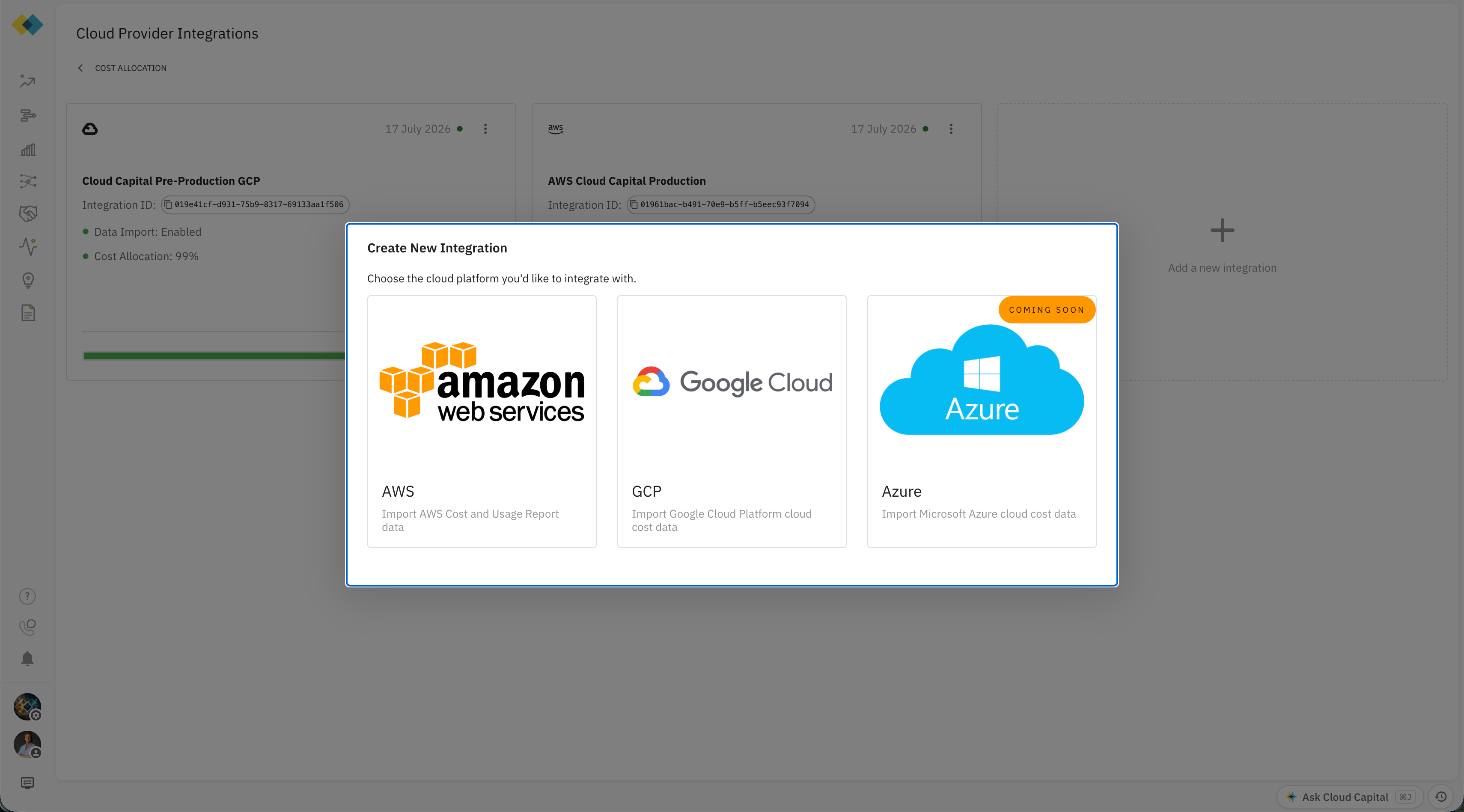 On the Integration Settings page, give your integration a descriptive name (e.g. `My new GCP Integration`). You'll enter your BigQuery coordinates and grant access on this same page in the steps below.
In the Google Cloud Console, go to **Billing → Billing export** and enable **BigQuery export** using the **Standard usage cost** option.
Note the **project** and **dataset** you configure for the export. Once the export runs, a table named like `gcp_billing_export_v1_XXXXXX` appears in that dataset.
If you're setting up billing export for the first time, see [Google's billing export documentation](https://cloud.google.com/billing/docs/how-to/export-data-bigquery). Because GCP only exports data going forward, enable it as early as possible.
The Cloud Capital integration form asks for three values. To find them, open the BigQuery Console, expand your billing project in the explorer, select the export dataset, and copy the export table's name.
| Field | What it is | Example |
| -------------------- | -------------------------------------------------- | -------------------------------------------- |
| GCP Project ID | The project containing your billing export dataset | `my-billing-project` |
| BigQuery Dataset ID | The dataset where the export lives | `billing_export` |
| Billing Export Table | The specific export table (not the dataset) | `gcp_billing_export_v1_018ECB_B18E18_C07590` |
On the Integration Settings page, copy the **service account email** shown under **Grant BigQuery Access**. Always use the email displayed in the app — it is specific to your Cloud Capital environment.
On the Integration Settings page, give your integration a descriptive name (e.g. `My new GCP Integration`). You'll enter your BigQuery coordinates and grant access on this same page in the steps below.
In the Google Cloud Console, go to **Billing → Billing export** and enable **BigQuery export** using the **Standard usage cost** option.
Note the **project** and **dataset** you configure for the export. Once the export runs, a table named like `gcp_billing_export_v1_XXXXXX` appears in that dataset.
If you're setting up billing export for the first time, see [Google's billing export documentation](https://cloud.google.com/billing/docs/how-to/export-data-bigquery). Because GCP only exports data going forward, enable it as early as possible.
The Cloud Capital integration form asks for three values. To find them, open the BigQuery Console, expand your billing project in the explorer, select the export dataset, and copy the export table's name.
| Field | What it is | Example |
| -------------------- | -------------------------------------------------- | -------------------------------------------- |
| GCP Project ID | The project containing your billing export dataset | `my-billing-project` |
| BigQuery Dataset ID | The dataset where the export lives | `billing_export` |
| Billing Export Table | The specific export table (not the dataset) | `gcp_billing_export_v1_018ECB_B18E18_C07590` |
On the Integration Settings page, copy the **service account email** shown under **Grant BigQuery Access**. Always use the email displayed in the app — it is specific to your Cloud Capital environment.
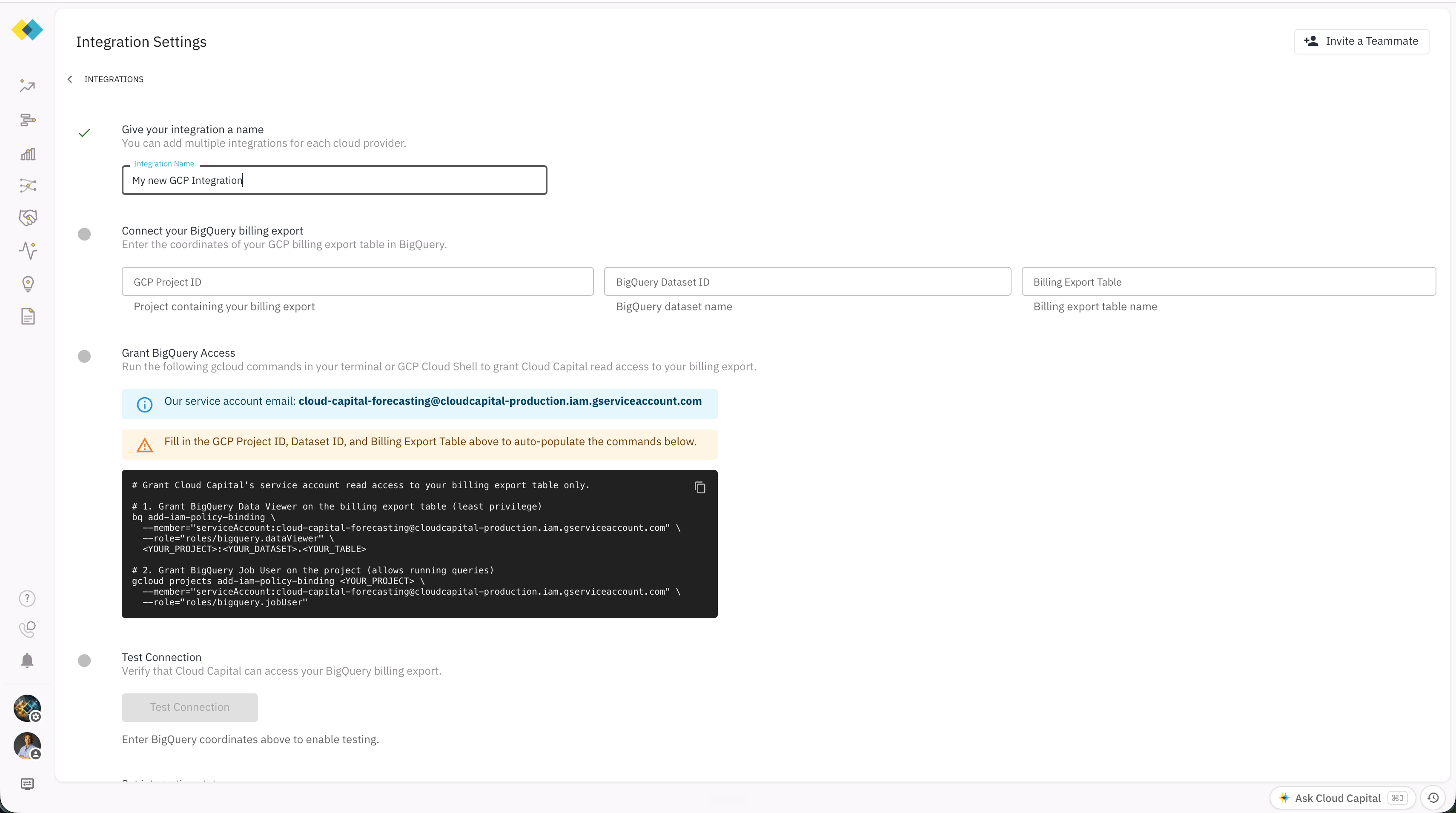 Grant that service account the two roles below. The setup page auto-populates these commands with your project, dataset, and table once you've entered them, so you can copy them directly. Run them in your terminal or in GCP Cloud Shell:
```bash theme={null}
# 1. BigQuery Data Viewer on the billing export table (least privilege — table only)
bq add-iam-policy-binding \
--member="serviceAccount:" \
--role="roles/bigquery.dataViewer" \
:.
Grant that service account the two roles below. The setup page auto-populates these commands with your project, dataset, and table once you've entered them, so you can copy them directly. Run them in your terminal or in GCP Cloud Shell:
```bash theme={null}
# 1. BigQuery Data Viewer on the billing export table (least privilege — table only)
bq add-iam-policy-binding \
--member="serviceAccount:" \
--role="roles/bigquery.dataViewer" \
:.
# 2. BigQuery Job User on the project (allows running queries)
gcloud projects add-iam-policy-binding \
--member="serviceAccount:" \
--role="roles/bigquery.jobUser"
```
Both grants are required. A common mistake is granting only data access on the table or dataset without the project-level **Job User** role. Without it, Cloud Capital cannot run queries and the connection test will fail.
Back on the Integration Settings page:
1. **Enter** the GCP Project ID, BigQuery Dataset ID, and Billing Export Table from Step 3.
2. **Grant access** as described in Step 4, if you haven't already.
3. Click **Test Connection**. This verifies Cloud Capital can authenticate and run a read query against your table — you can test before saving.
4. A successful test sets the integration status to **Enabled** automatically.
5. Click **Save**.
The connection test confirms access to the table. It does not validate the export's contents or confirm that data has been ingested yet.
***
### What to expect after setup
* **Data timing** — Cost data is ingested on a scheduled nightly cycle, not instantly on save. Expect your first data in dashboards within about 24 hours of a successful connection, provided the billing export table already contains data.
* **Empty at first is normal** — If you just enabled the export, GCP may not have written rows yet. Cloud Capital will pick them up on the next nightly cycle.
### Troubleshooting
| Symptom | What to check |
| ---------------------------------------------- | ------------------------------------------------------------------------------------------------------------------------------------------------------------------------------- |
| Connection test fails with a permission error | Re-check both IAM grants from Step 4, and confirm the service account email you granted matches exactly what's shown on the Cloud Capital setup page. |
| Connection test fails with "not found" | Verify the project, dataset, and table values against the BigQuery Console. The table field needs the table name itself (e.g. `gcp_billing_export_v1_...`), not the dataset. |
| Wrong export type | Confirm you connected the `gcp_billing_export_v1_*` table from the **Standard usage cost** export, not a detailed / resource-level export table. |
| Test passes but dashboards are empty | If the export was just enabled, GCP may not have written data yet, and Cloud Capital ingests nightly. Confirm the export table has rows in BigQuery, then allow up to 24 hours. |
| Saved configuration appears blank after reload | Contact Cloud Capital support. |
***
For a full overview of how Cloud Capital handles data access, encryption, audit logging, and compliance, see the Security page.