> ## Documentation Index
> Fetch the complete documentation index at: https://docs.cloudcapital.co/llms.txt
> Use this file to discover all available pages before exploring further.
# Integrate OpenAI
> Connect OpenAI Platform organization API spend to Cloud Capital with an Admin API key. OpenAI support is currently in Beta.
**OpenAI support is in Beta.** To enroll, request access from your Cloud Capital Customer Success Manager. Once your account is enabled, **OpenAI** appears as an option on the New Integration page. If you don't see it yet, reach out to your Customer Success Manager.
Cloud Capital reads your **OpenAI Platform** organization API spend (projects, models, line items) from OpenAI's Admin Costs APIs. You paste an **OpenAI Admin API key**; the key is encrypted and stored on the integration. This path is **forecast-only**.
Setup takes about 5 minutes once you have an Admin API key.
***
### What Cloud Capital accesses
| What you're granting | How | Scope |
| -------------------- | --------------------------------------------------- | ---------------------------------------------------------------------------- |
| OpenAI Admin API key | Pasted into the integration form, encrypted at rest | Read access to organization projects and costs APIs used by the nightly load |
Cloud Capital uses the key only to **read** cost data. Ordinary inference keys cannot call Admin APIs and will fail the connection test. This integration does not enable commitment purchasing or billing transfer.
### What's available with OpenAI today
| Available | Not yet available |
| ------------------------------------------------------------------------------- | ------------------------------------------- |
| Cost forecasting, cost insights, and cost allocation for Platform org API spend | Commitment purchasing through Cloud Capital |
| Daily-grain cost data from the Admin Costs API | Billing through Cloud Capital |
| | Per-user dollar breakout from this API |
| | ChatGPT Team or Enterprise seats |
***
### Before you begin
* **Choose this for Platform org API spend** — Usage billed in the OpenAI organization dashboard (projects, models, line items).
* **Admin API key** — Create an Admin key in the [OpenAI organization dashboard](https://platform.openai.com). Ordinary inference / project keys cannot call Admin APIs.
* **Not covered here** — ChatGPT Team or Enterprise seats. OpenAI usage billed through AWS Marketplace stays on your [AWS integration](/get-started/aws-data-integration) — connecting both paths for the same spend can double-count.
* **Grain** — Costs are daily. There is no per-user dollar breakout from this API.
This integration covers **OpenAI Platform organization API spend only**. It does not import ChatGPT Team or Enterprise seats. Keep AWS Marketplace-billed OpenAI usage on your AWS integration to avoid double-counting, and expect daily organization costs rather than per-user dollar totals.
### Setup
In Cloud Capital, go to the **Integrations** page — from Cost Allocation, use **Manage Cloud Providers**. Click **Create New Integration** and choose **OpenAI**.
The new integration opens on the Integration Settings page. Give it a descriptive name.
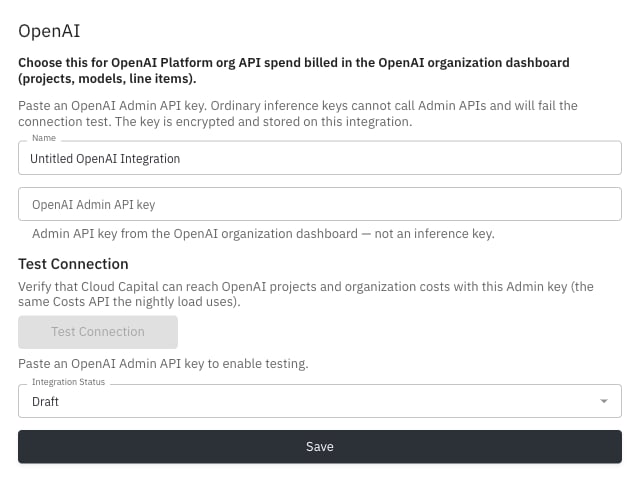 In the [OpenAI platform dashboard](https://platform.openai.com), open your **organization** settings and create an **Admin API key** (not a standard project or inference key).
Copy the key once at creation time.
See [OpenAI's Admin API documentation](https://platform.openai.com/docs/api-reference/administration) for how Admin keys differ from project API keys.
On the Integration Settings page:
1. Paste the Admin API key into the **OpenAI Admin API key** field.
2. Click **Test Connection**. Cloud Capital verifies it can reach OpenAI projects and organization costs with this Admin key (the same Costs API the nightly load uses).
3. After a successful test, set status to **Enabled** and click **Save**.
You must complete a successful connection test before you can enable a new integration. To rotate a key later, paste a new key and re-test; leave the field blank to keep the stored key.
***
### What to expect after setup
* **Data timing** — Cost data is ingested on a scheduled nightly cycle. Expect dashboards within about 24 hours of a successful connection.
* **Daily grain** — OpenAI costs land at daily resolution; there is no per-user dollar breakout from this Admin Costs path.
* **Forecast only** — Commitment purchasing and billing transfer are not part of this integration.
* **Cost allocation** — After ingest, OpenAI spend can appear in forecasting and cost insights. Mapping behavior for agentic providers may differ from AWS linked accounts; start from Cost Insights once data is present.
### Troubleshooting
| Symptom | What to check |
| ------------------------------------ | -------------------------------------------------------------------------------------------------------------- |
| OpenAI card missing or Coming Soon | Your org is not enrolled yet. Ask your Customer Success Manager to enable `openai`. |
| Connection test fails | Confirm you pasted an **Admin** API key from the organization dashboard, not an inference or project-only key. |
| ChatGPT seats missing | Not covered by this integration — Platform org API spend only. |
| Marketplace OpenAI also on AWS CUR | Keep Marketplace spend on AWS only for that path. Connecting both for the same usage can double-count. |
| Test passes but dashboards are empty | Allow up to 24 hours for nightly ingest. Confirm the OpenAI org dashboard shows recent API spend. |
***
For a full overview of how Cloud Capital handles data access, encryption, audit logging, and compliance, see the Security page.
In the [OpenAI platform dashboard](https://platform.openai.com), open your **organization** settings and create an **Admin API key** (not a standard project or inference key).
Copy the key once at creation time.
See [OpenAI's Admin API documentation](https://platform.openai.com/docs/api-reference/administration) for how Admin keys differ from project API keys.
On the Integration Settings page:
1. Paste the Admin API key into the **OpenAI Admin API key** field.
2. Click **Test Connection**. Cloud Capital verifies it can reach OpenAI projects and organization costs with this Admin key (the same Costs API the nightly load uses).
3. After a successful test, set status to **Enabled** and click **Save**.
You must complete a successful connection test before you can enable a new integration. To rotate a key later, paste a new key and re-test; leave the field blank to keep the stored key.
***
### What to expect after setup
* **Data timing** — Cost data is ingested on a scheduled nightly cycle. Expect dashboards within about 24 hours of a successful connection.
* **Daily grain** — OpenAI costs land at daily resolution; there is no per-user dollar breakout from this Admin Costs path.
* **Forecast only** — Commitment purchasing and billing transfer are not part of this integration.
* **Cost allocation** — After ingest, OpenAI spend can appear in forecasting and cost insights. Mapping behavior for agentic providers may differ from AWS linked accounts; start from Cost Insights once data is present.
### Troubleshooting
| Symptom | What to check |
| ------------------------------------ | -------------------------------------------------------------------------------------------------------------- |
| OpenAI card missing or Coming Soon | Your org is not enrolled yet. Ask your Customer Success Manager to enable `openai`. |
| Connection test fails | Confirm you pasted an **Admin** API key from the organization dashboard, not an inference or project-only key. |
| ChatGPT seats missing | Not covered by this integration — Platform org API spend only. |
| Marketplace OpenAI also on AWS CUR | Keep Marketplace spend on AWS only for that path. Connecting both for the same usage can double-count. |
| Test passes but dashboards are empty | Allow up to 24 hours for nightly ingest. Confirm the OpenAI org dashboard shows recent API spend. |
***
For a full overview of how Cloud Capital handles data access, encryption, audit logging, and compliance, see the Security page.