> ## Documentation Index
> Fetch the complete documentation index at: https://docs.cloudcapital.co/llms.txt
> Use this file to discover all available pages before exploring further.
# Getting started
**Welcome to Cloud Capital!**
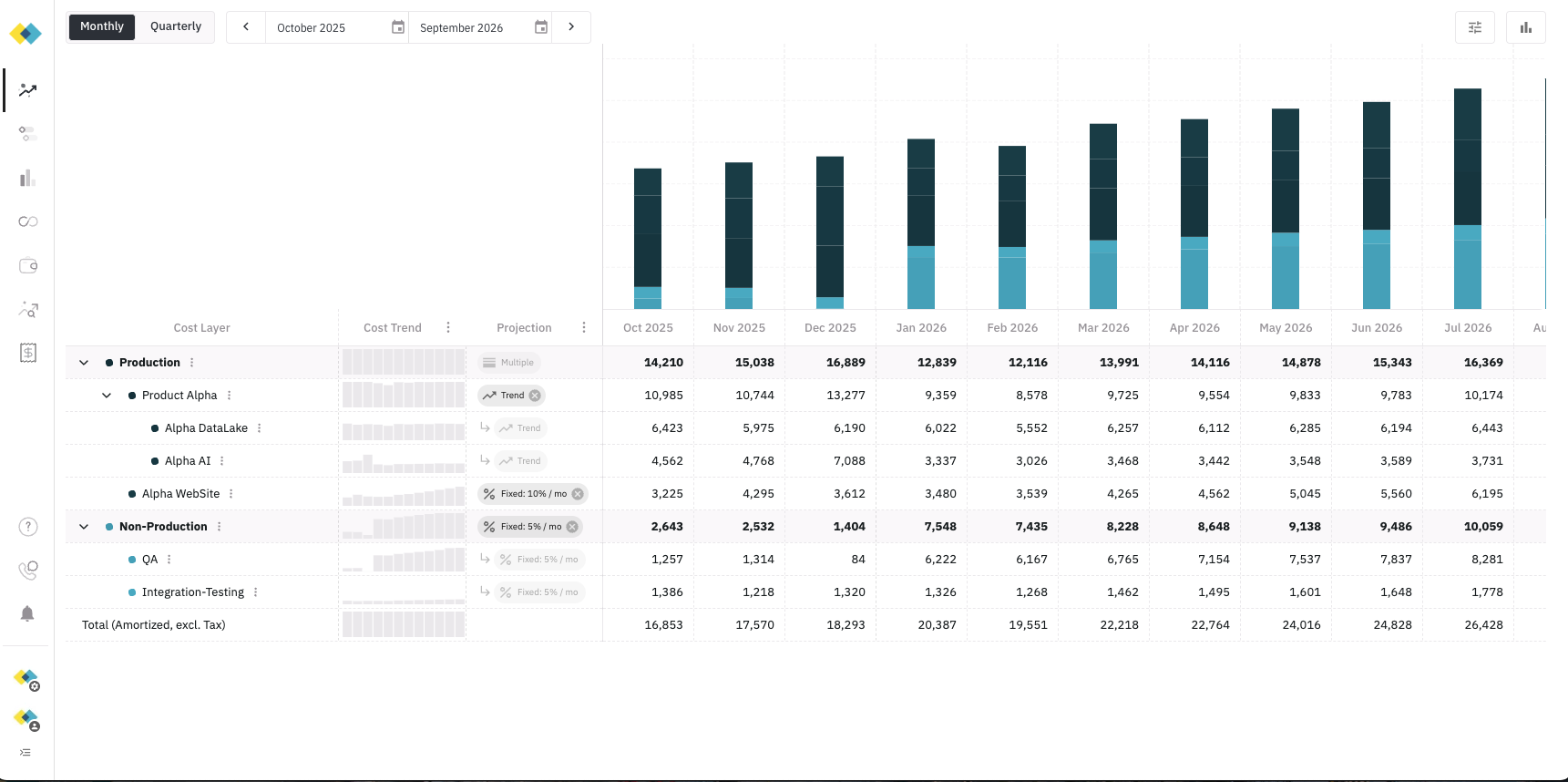 **Time to complete:** \~25 minutes
**This guide will walk you through connecting your cloud provider data to Cloud Capital.**
## Integration Steps
### Step 1: Connect Your Cloud Provider Cost Data
* **Who:** Engineering / DevOps team
* **Time to complete:** \~10 minutes
* ***Required*** - Connect to your cloud provider to automatically import cost data. Choose your guide below:
Connect your AWS cost and usage data.
Connect your Google Cloud cost and commitment data.
### Step 2: Map your Cloud Costs to Production/Non-Production
* **Who:** Engineering / DevOps team
* **Time to complete:** \~15 minutes
* View the Engineering Quickstart guide:
* [Map Cloud Resources](/get-started/map-cloud-resources) - ***Required*** - Map your imported consumption data (Cloud Resources) to your Forecast's Cost Layers
**Note:** once you connect your cloud provider data, it typically takes 24 hours to appear in your dashboard.
**Ready to get started?**
Integrate your AWS cost data now.
Integrate your GCP cost data now (Beta).
**Time to complete:** \~25 minutes
**This guide will walk you through connecting your cloud provider data to Cloud Capital.**
## Integration Steps
### Step 1: Connect Your Cloud Provider Cost Data
* **Who:** Engineering / DevOps team
* **Time to complete:** \~10 minutes
* ***Required*** - Connect to your cloud provider to automatically import cost data. Choose your guide below:
Connect your AWS cost and usage data.
Connect your Google Cloud cost and commitment data.
### Step 2: Map your Cloud Costs to Production/Non-Production
* **Who:** Engineering / DevOps team
* **Time to complete:** \~15 minutes
* View the Engineering Quickstart guide:
* [Map Cloud Resources](/get-started/map-cloud-resources) - ***Required*** - Map your imported consumption data (Cloud Resources) to your Forecast's Cost Layers
**Note:** once you connect your cloud provider data, it typically takes 24 hours to appear in your dashboard.
**Ready to get started?**
Integrate your AWS cost data now.
Integrate your GCP cost data now (Beta).