

Server URL
Setting up in Cursor
1
Open MCP configuration
Open Cursor Settings and navigate to the MCP server configuration section.
2
Add the Cloud Capital server
Add a new server with this configuration:
3
Authorize access
Cursor opens a browser window for authorization. Sign in to Cloud Capital (if not already signed in), select the organization you want to authorize access for, and click Authorize.
4
Return to Cursor
Switch back to Cursor — the connection is now active.
Setting up in Windsurf
Windsurf uses the same configuration format as Cursor. Follow the Cursor steps above, entering the same server URL and JSON configuration in Windsurf’s MCP settings. The authorization flow is identical.Setting up in Claude Desktop
Claude Desktop’s local config file only supports STDIO-based MCP servers — it cannot connect directly to remote HTTP servers. To connect to Cloud Capital’s MCP server, use themcp-remote bridge, which runs locally and handles the OAuth flow on your behalf.
You will need Node.js installed on your machine for the
npx command to work.1
Open the Claude Desktop configuration file
Claude Desktop reads MCP server settings from a JSON config file on your machine. Open it in any text editor:
- macOS:
~/Library/Application Support/Claude/claude_desktop_config.json - Windows:
%APPDATA%\Claude\claude_desktop_config.json
2
Add the Cloud Capital server
Add the following to your config file. If
mcpServers already exists, add the cloudcapital entry inside it:mcp-remote acts as a local bridge between Claude Desktop and the Cloud Capital HTTP server. It handles the OAuth authorization flow automatically.3
Restart Claude Desktop
Quit and relaunch Claude Desktop to load the new configuration.
4
Authorize access
When Claude Desktop first connects,
mcp-remote opens a browser window for authorization. Sign in to Cloud Capital (if not already signed in), select the organization you want to authorize access for, and click Authorize. The token is cached locally — you will not need to re-authorize on subsequent launches.API key authentication
By default, MCP clients use OAuth — a browser window opens for sign-in and the token is cached locally. Some clients do not persist this token between sessions, requiring you to re-authorize each time. Using an API key instead bypasses the OAuth flow entirely, giving you persistent access without re-authentication on restart.Create an API key
- In the Cloud Capital app, click your organization name at the bottom of the sidebar to open Organization Settings.
- Navigate to the Developers tab.
- Under API Keys, click Create API Key, give it a name, and copy the key — it is only shown once.
Configure your client with an API key
Cursor and Windsurf Replace the standard URL-only configuration with:mcp-remote. Using an environment variable keeps the key out of the config file itself:
YOUR_API_KEY with the key you copied from the Developers tab.
Authorization and security
When an MCP client connects for the first time, it opens a browser window with the Cloud Capital Authorize Access screen. From here you select the organization you want to grant access to and review the permissions being requested.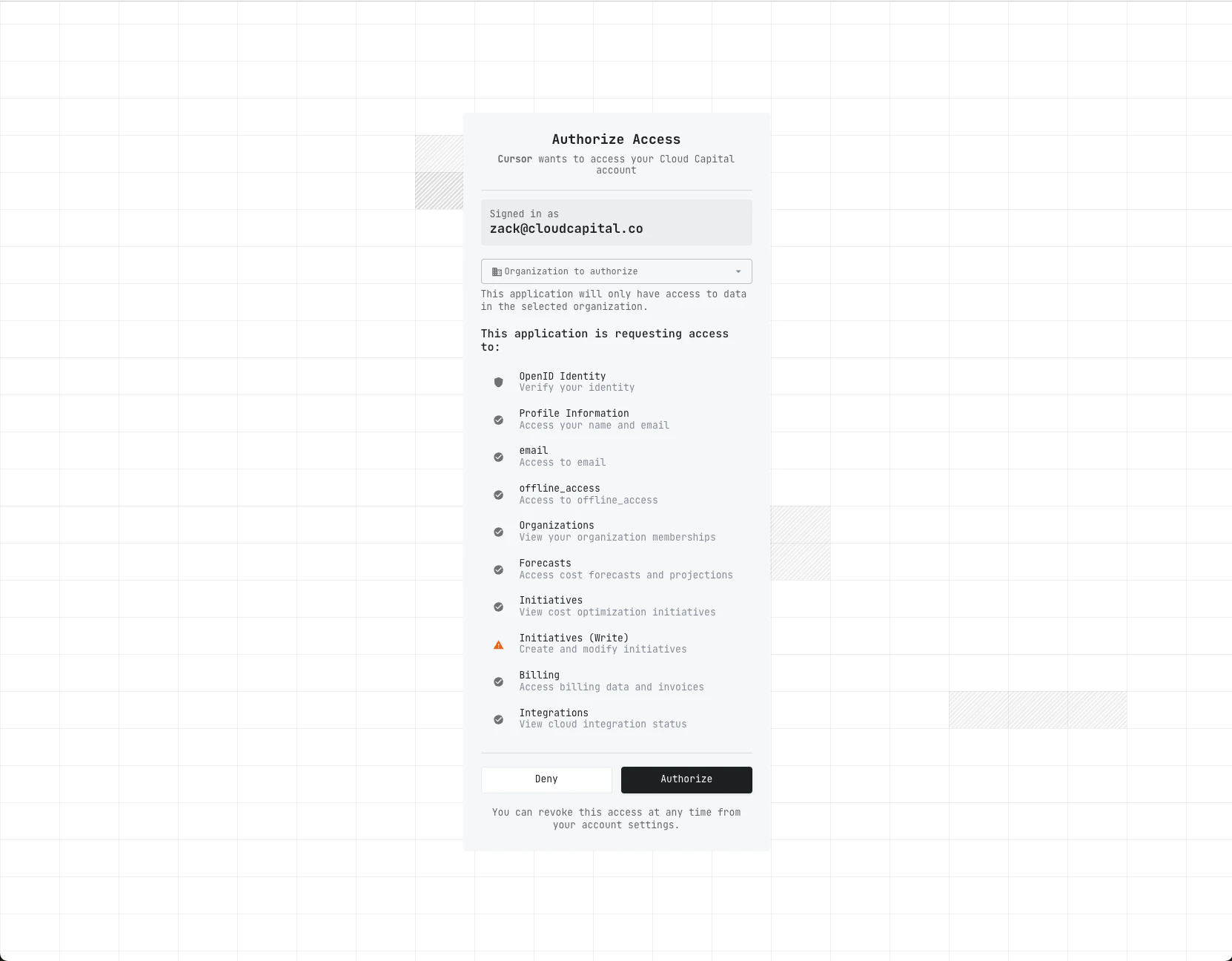
- The client only has access to the organization you selected during the consent step.
- You are shown the exact permissions being granted before you authorize.
- Click Authorize to complete the connection, or Deny to cancel.
- Authorization uses industry-standard OAuth 2.1 with PKCE.
Managing connected applications
1
Open organization settings
In the Cloud Capital app, click your organization name at the bottom of the sidebar.
2
Navigate to the Developers tab
Select the Developers tab. Under Cloud Capital MCP Server, you will see all connected applications.
3
Manage access
From this screen you can:
- Revoke Token — invalidates a specific access token. The app can reconnect without re-authorizing.
- Disconnect App — fully removes the app and all its tokens. The app will need to go through the authorization process again.