

Opening the assistant
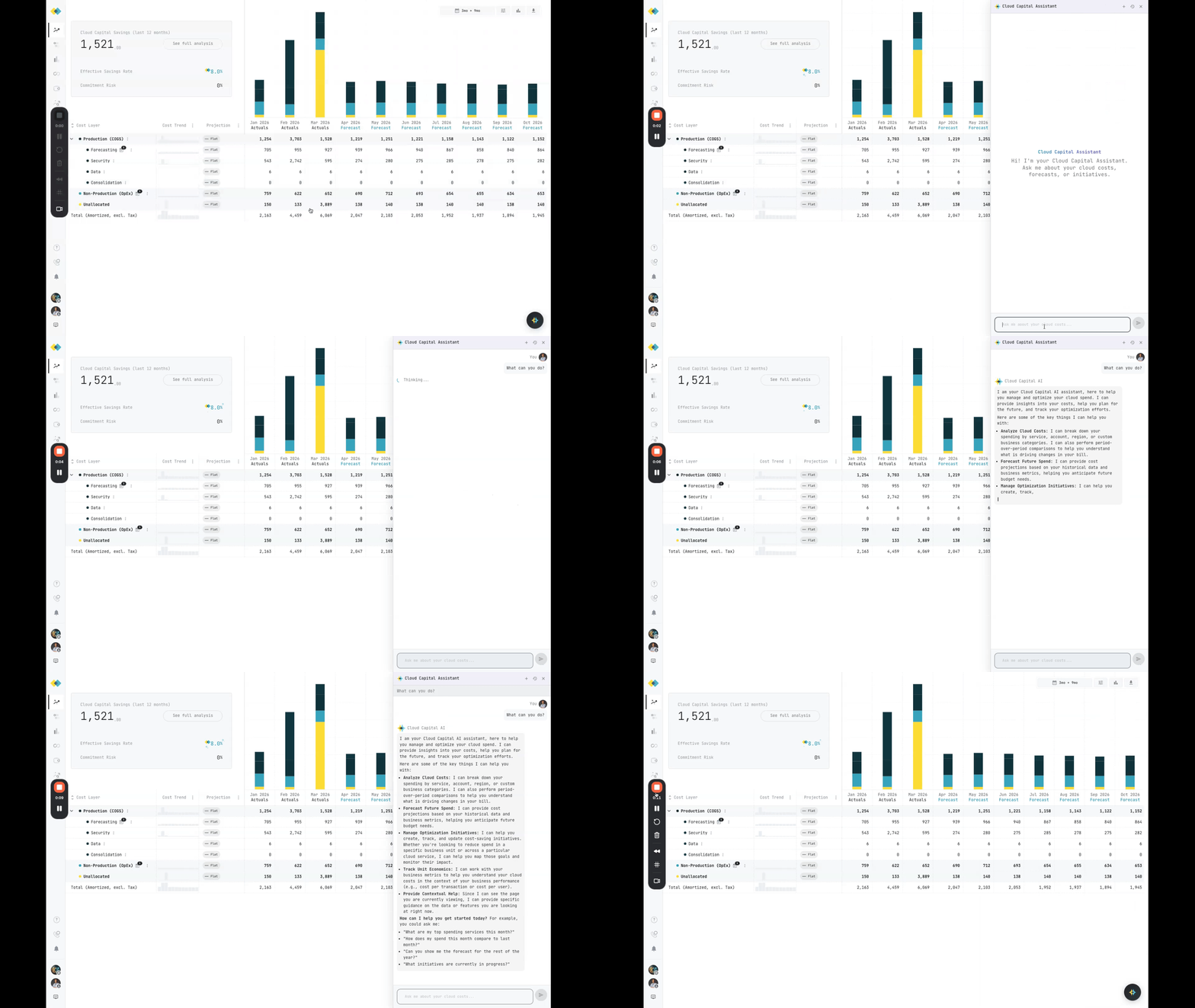
Click the floating chat button in the bottom-right corner of the app. A chat drawer opens on the right side of your screen.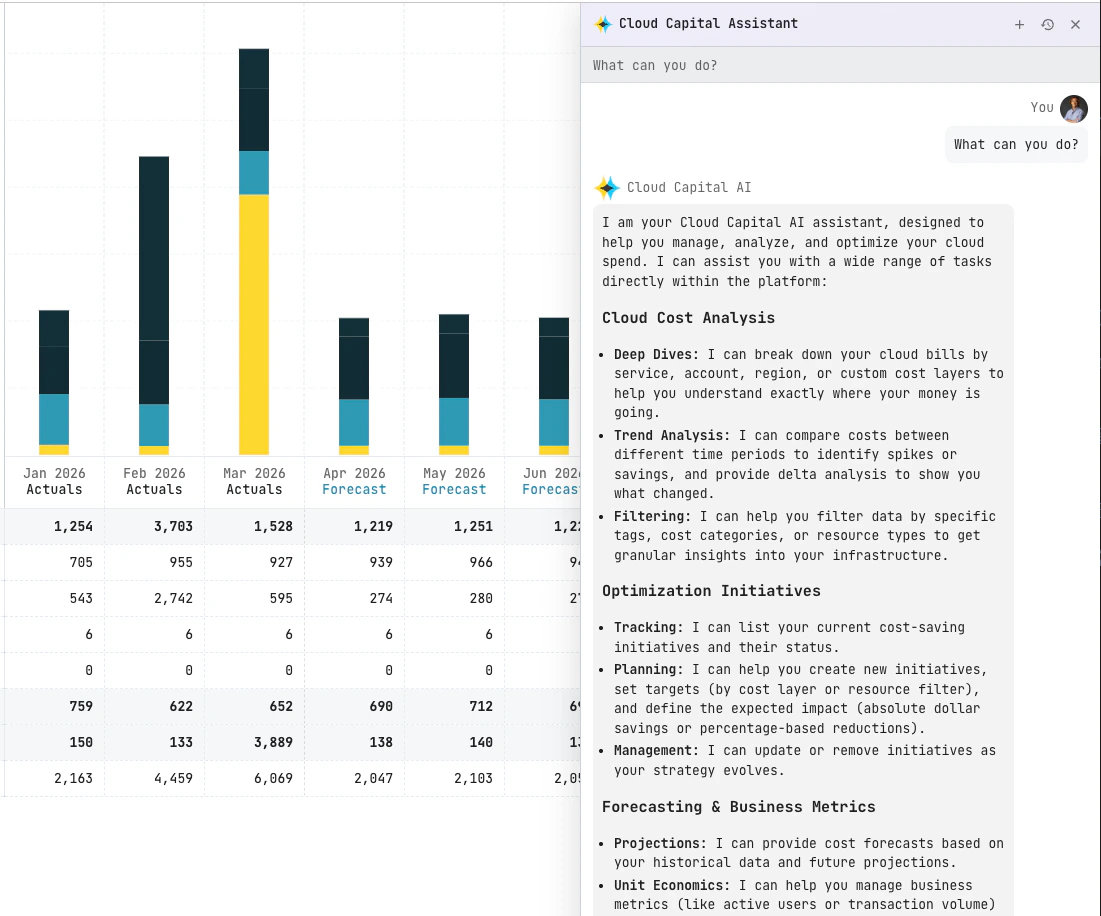
What you can ask
Here are some example prompts to get started:- “What were our top 3 cost increases last month?”
- “Show me the forecast for the next 6 months”
- “Create an initiative to reduce EC2 costs by 15%”
- “Compare this month’s spend to last month by service”
- “What cost layers are under Production?”
- “What business metrics are we tracking?”
Capabilities
Cost analysis
Cost analysis
Query historical spend, compare periods, and break down costs by service, account, region, or tags.
Forecasting
Forecasting
View projected costs and understand your cost layers.
Initiatives
Initiatives
Create, view, and manage cost optimization initiatives.
Business metrics
Business metrics
Track and manage unit economics business metrics.
Billing
Billing
Review billing periods, summaries, and breakdowns.
Context awareness
Context awareness
The assistant can see what page you’re on and reference it in answers, so you can ask follow-up questions about what you’re looking at.
Managing conversations
- Click New conversation to start a fresh chat.
- Use the history toggle to view past conversations.
- Each conversation maintains context, so you can ask follow-up questions without repeating yourself.
Notes
The assistant can only access data within your current organization.
- If you don’t see the chat button, contact your Cloud Capital representative to have it enabled.
- Available capabilities may vary depending on how your organization is configured.
- The same tools available in the chat assistant are also accessible through the MCP server for use in external AI tools.