

Cost Allocation requires at least one active cloud integration (AWS or GCP) with cost data available. If you’ve just connected your integration, allow up to 24 hours for data to appear before mapping.
Why Cost Layers matter
Cloud Capital starts every organisation with two top-level cost layers:- Production (COGS) — infrastructure that directly supports your live product or service. From a finance perspective, this is Cost of Goods Sold: the cloud spend that scales with your revenue and belongs on your P&L as a direct cost of delivering your service.
- Non-Production (OpEx) — infrastructure used for development, staging, testing, and internal tooling. This is Operating Expenditure: necessary business cost, but not directly tied to serving customers.
- By cloud service — Compute, Database & Storage, Networking, AI & Analytics. Useful for understanding which service families (AWS or GCP) are driving cost growth, and for engineering teams who want to see their spend split by infrastructure type.
- By region — US East, EU West, APAC. Useful for organisations with regulatory, latency, or cost-allocation reasons to track spend by geography.
- By team or product using tags or labels — if your engineering teams tag their AWS resources or label their GCP resources, you can create cost layers that reflect those tags/labels, giving you per-team or per-product spend visibility directly in your forecast.
- By business line — Core Product, Data Pipeline, Internal Tools. Useful for companies with multiple products or revenue streams that want to understand cloud cost per product line.
Getting there
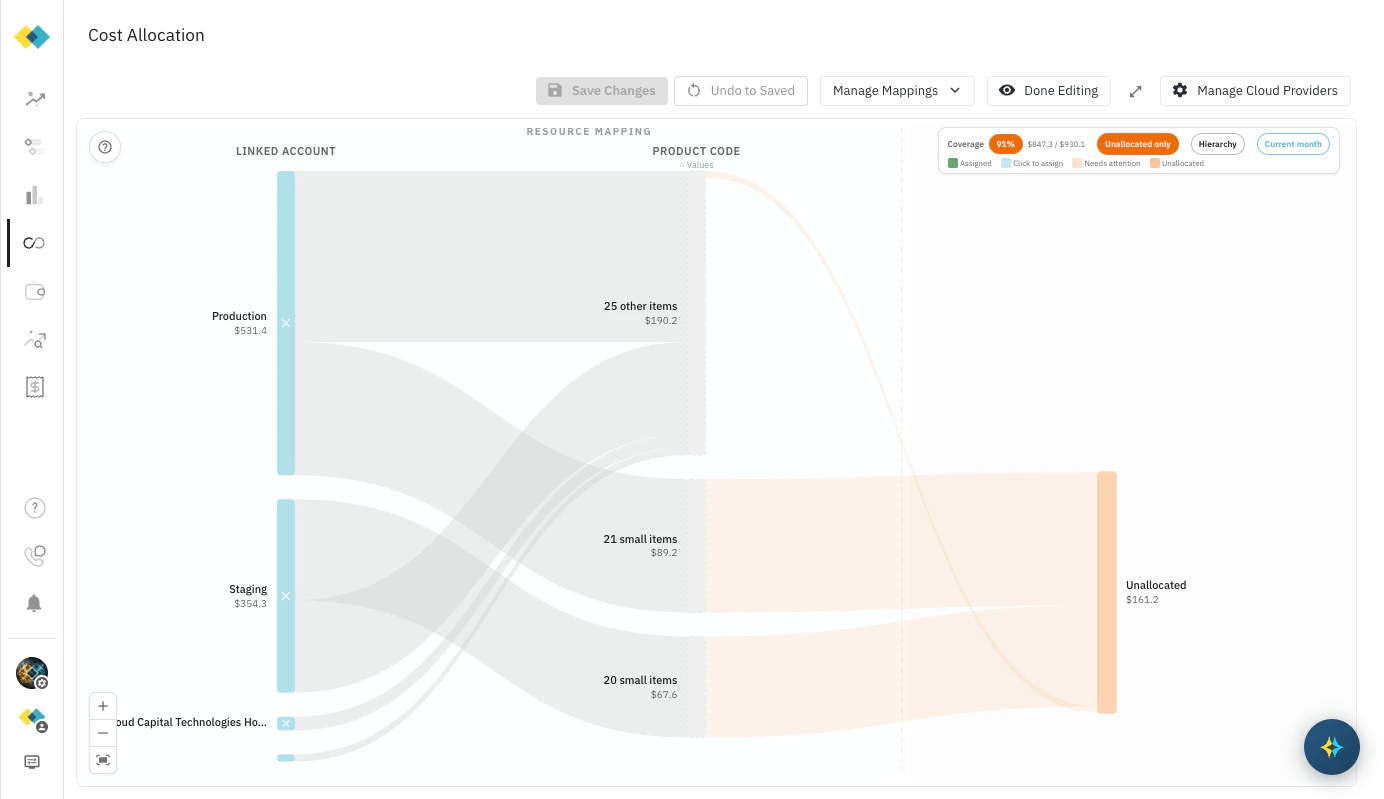
Navigate to Cost Allocation using the left sidebar, or click Cost Allocation at the top of the Cloud Provider Integrations page. The canvas shows a Sankey diagram flowing left to right. Linked Accounts sit on the left — your linked AWS accounts or GCP projects are always the starting point. In the middle, breakdown dimensions are flexible: by default this is Product Code (the AWS or GCP services within each account/project), but the columns between accounts and cost layers can vary. Cost Layers — your business categories — appear on the right. Flow width represents spend volume. Colour indicates assignment status: green (assigned), amber (needs attention), peach (unallocated).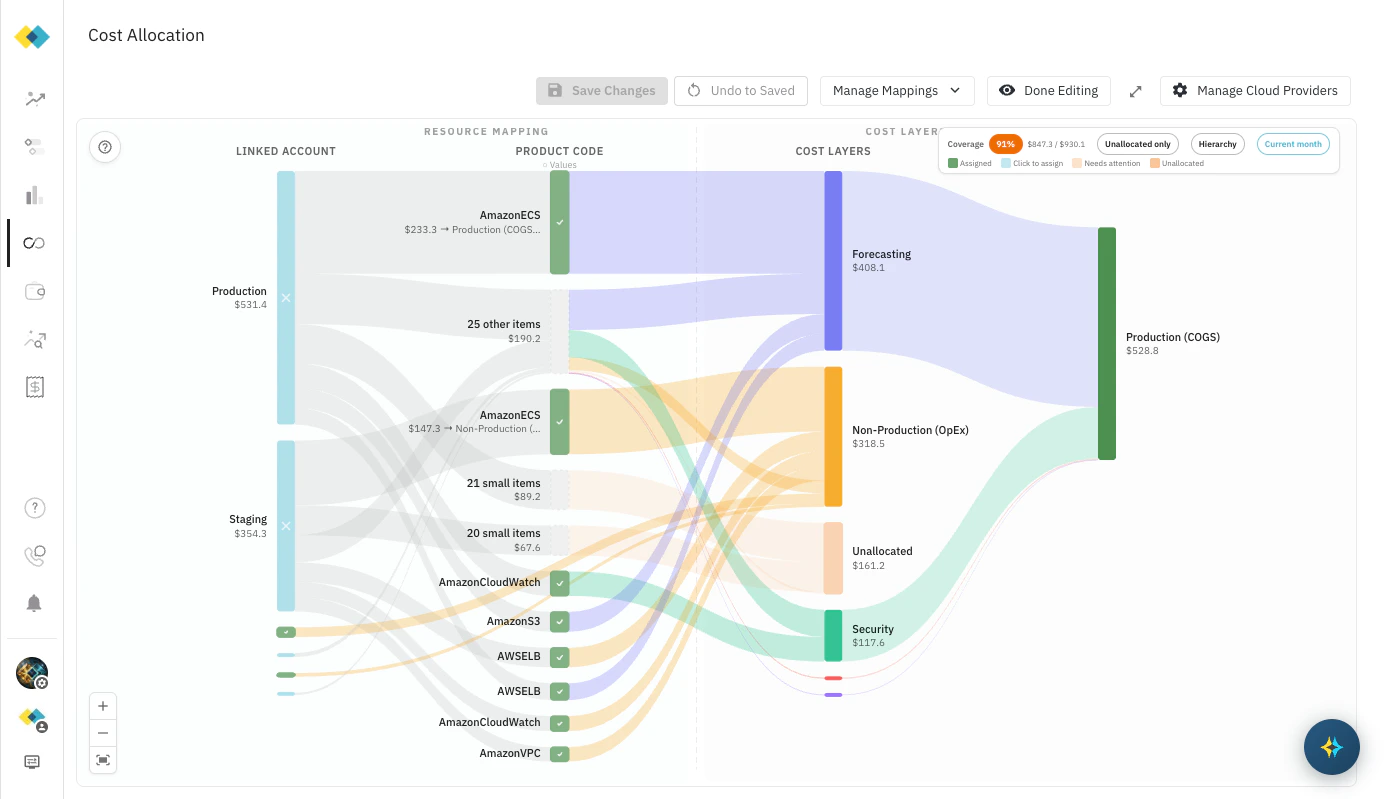
Mapping your resources
When you open Cost Allocation, click the ? icon in the top-left of the canvas to open the mapping guide. You can take either path: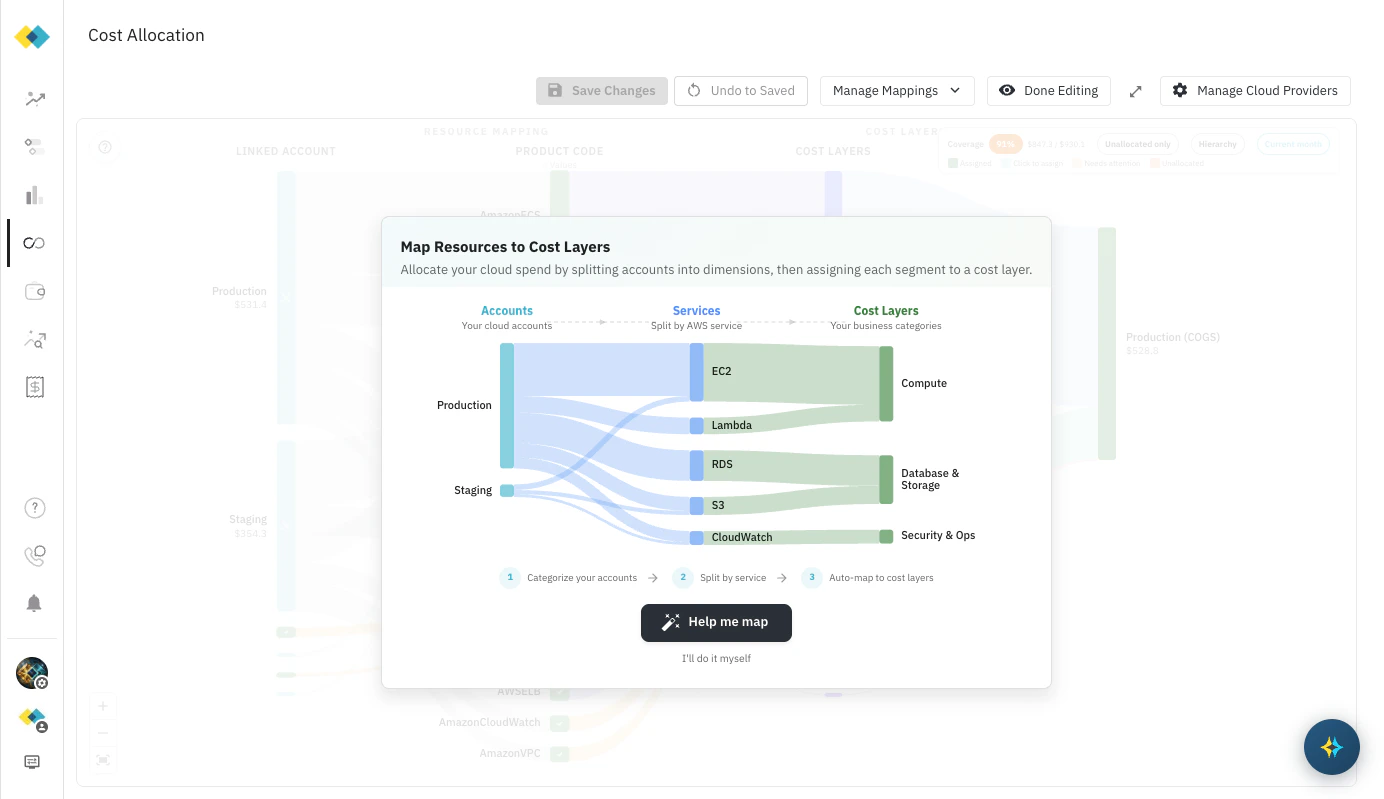
Help me map (guided)
The guided flow walks through mapping in four steps. Cloud Capital suggests a cost layer structure based on your accounts and services — you review and adjust before anything is applied. Step 1 — Map your accounts Cloud Capital analyses your account names and suggests a cost layer structure — automatically grouping accounts into Production, Staging, or Security & Operations. If you have your own preferred structure, the suggestions are a starting point: every account can be overridden before anything is applied. The summary shows how many accounts landed in each suggested category. Expand Review or change assignments to see every account with its suggested category and a dropdown to change it.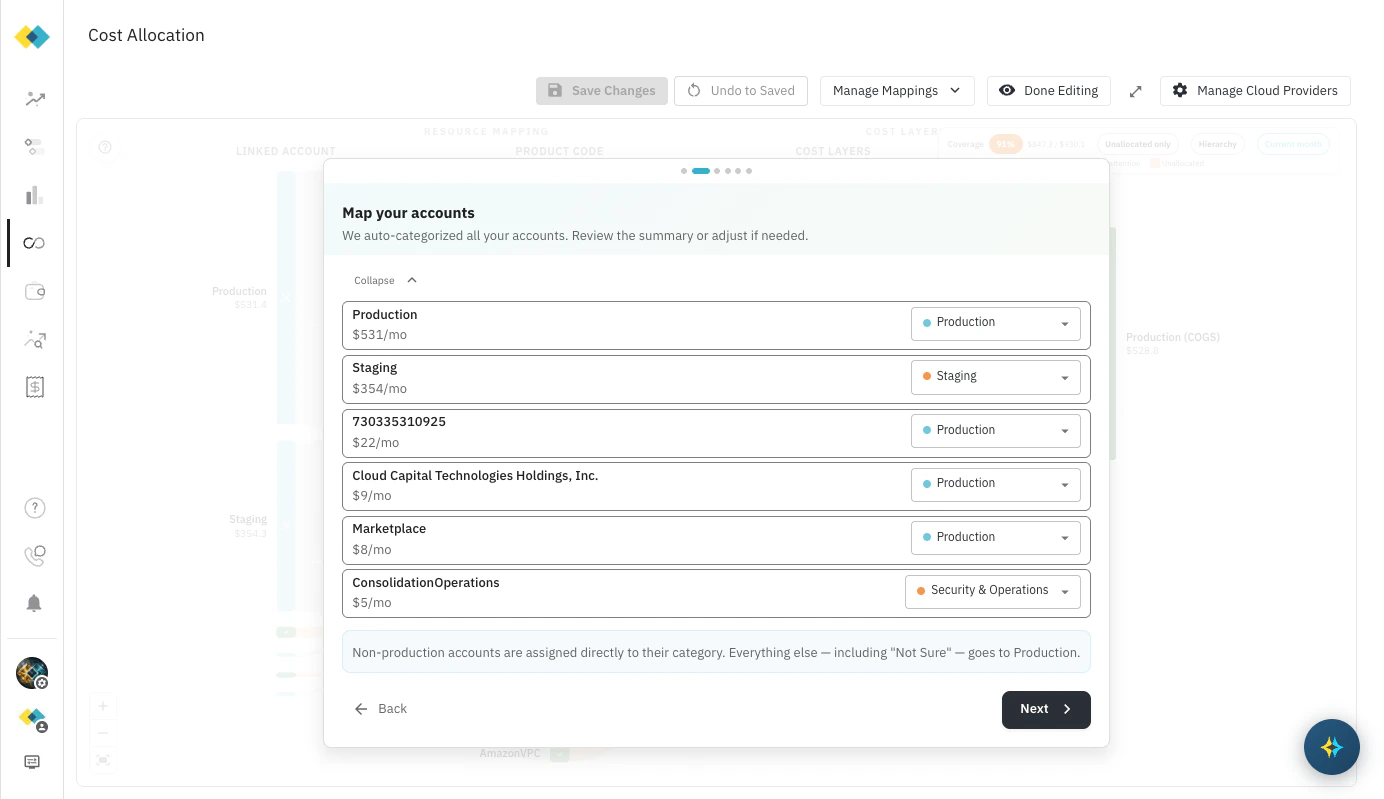
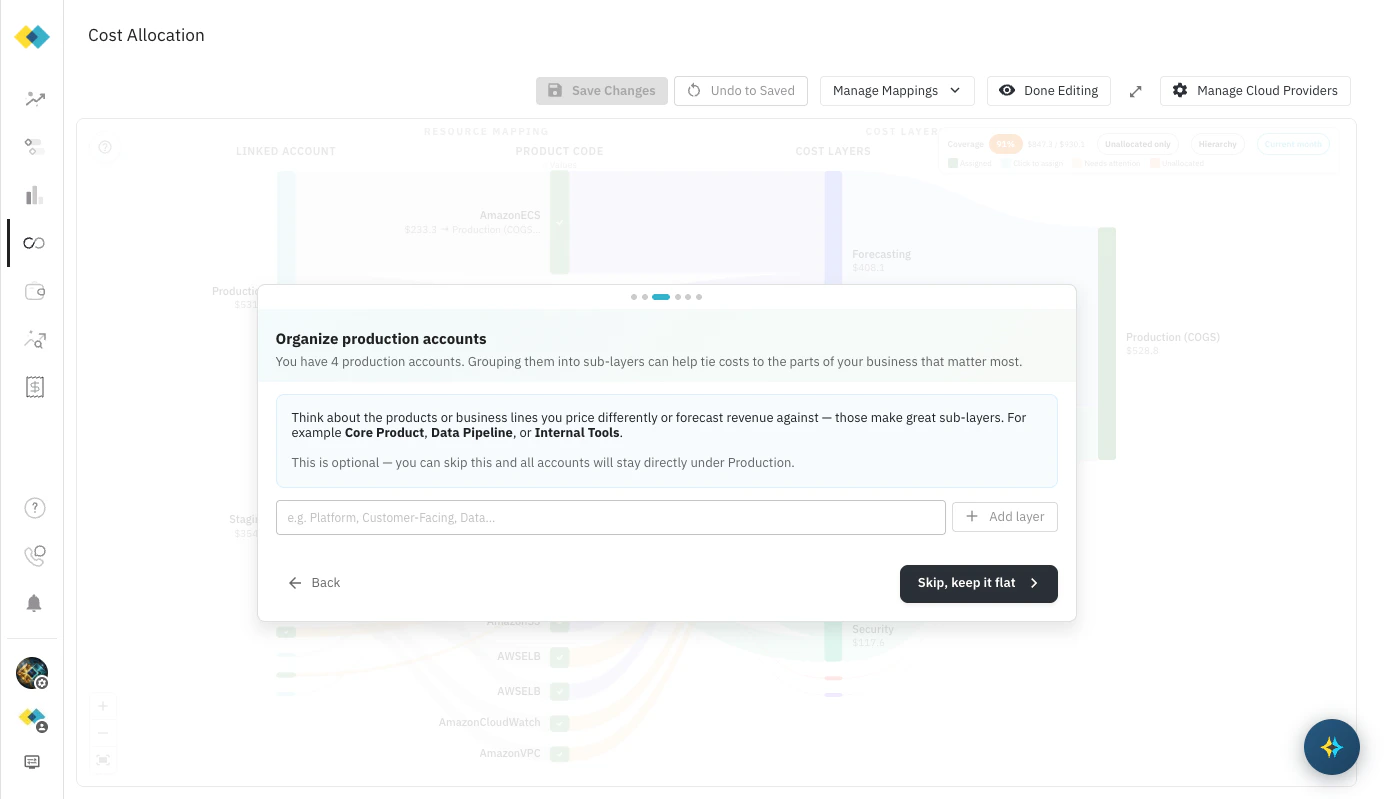
- Yes, group by service — Cloud Capital creates sub-layers for Compute, Database & Storage, Networking & Delivery, and AI & Analytics under your selected cost layers. The preview at the bottom shows exactly which categories will be created under Production (COGS) and Non-Production (OpEx).
- No, keep it simple — production accounts map directly to their cost layer without service-level breakdown.
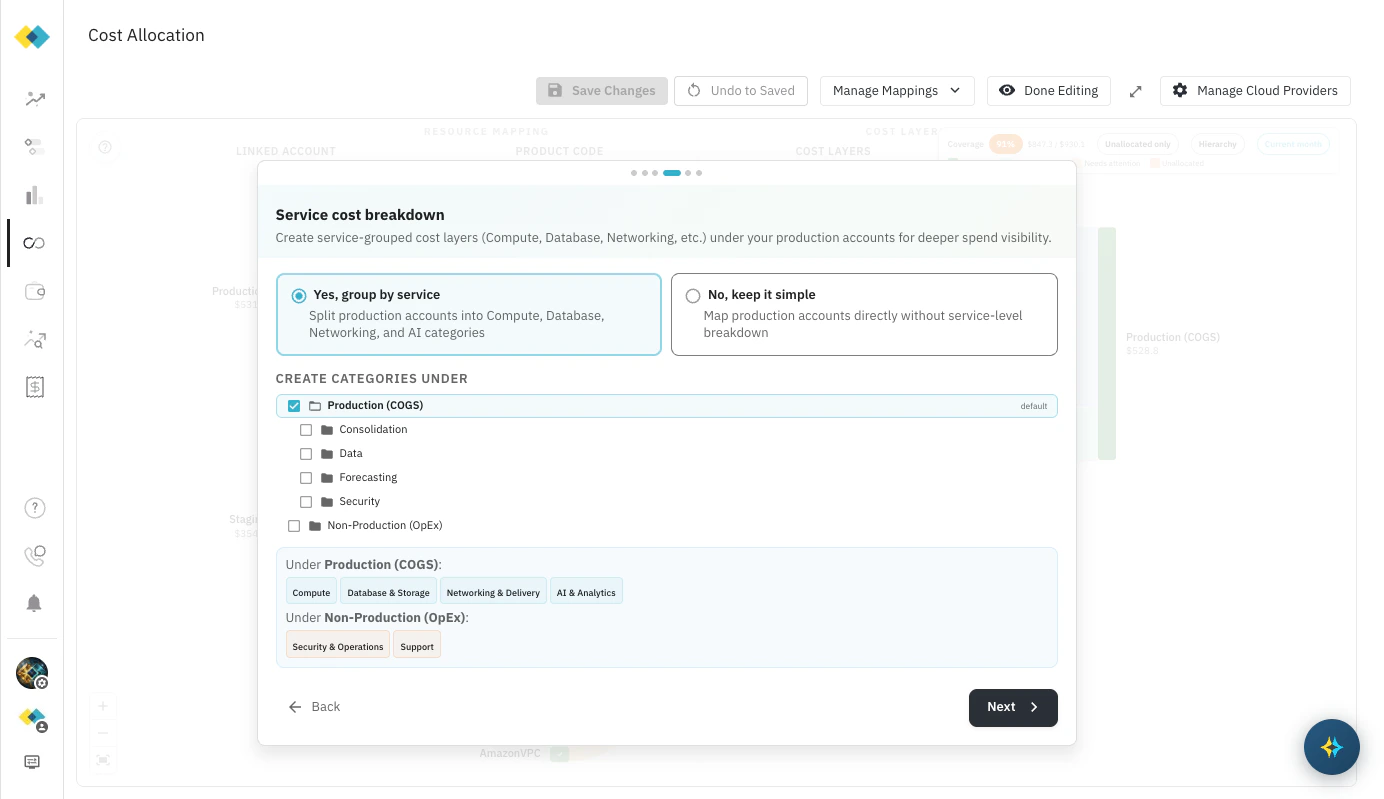
Applying the mapping only updates your local canvas view. Nothing is saved to your account until you click Save Changes in the toolbar.
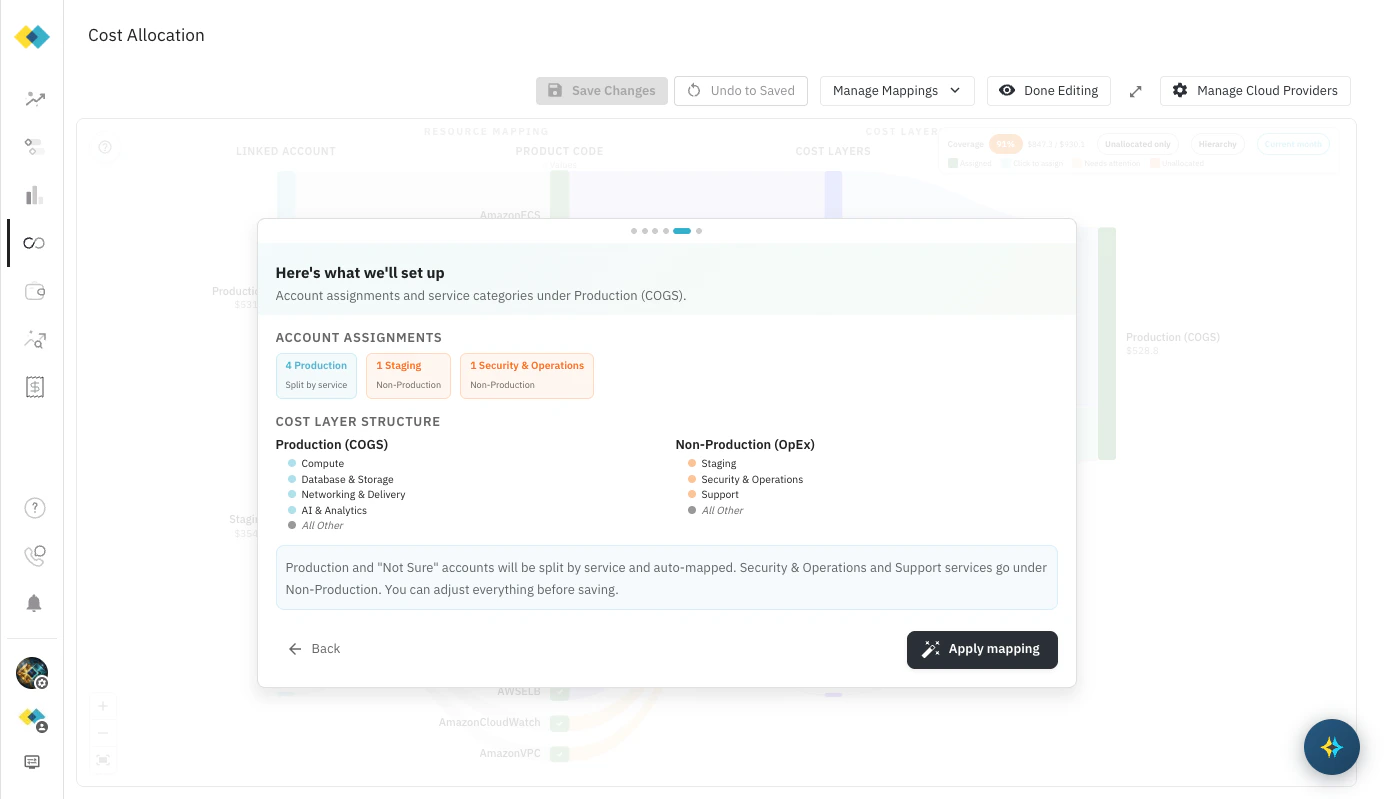
I’ll do it myself (manual)
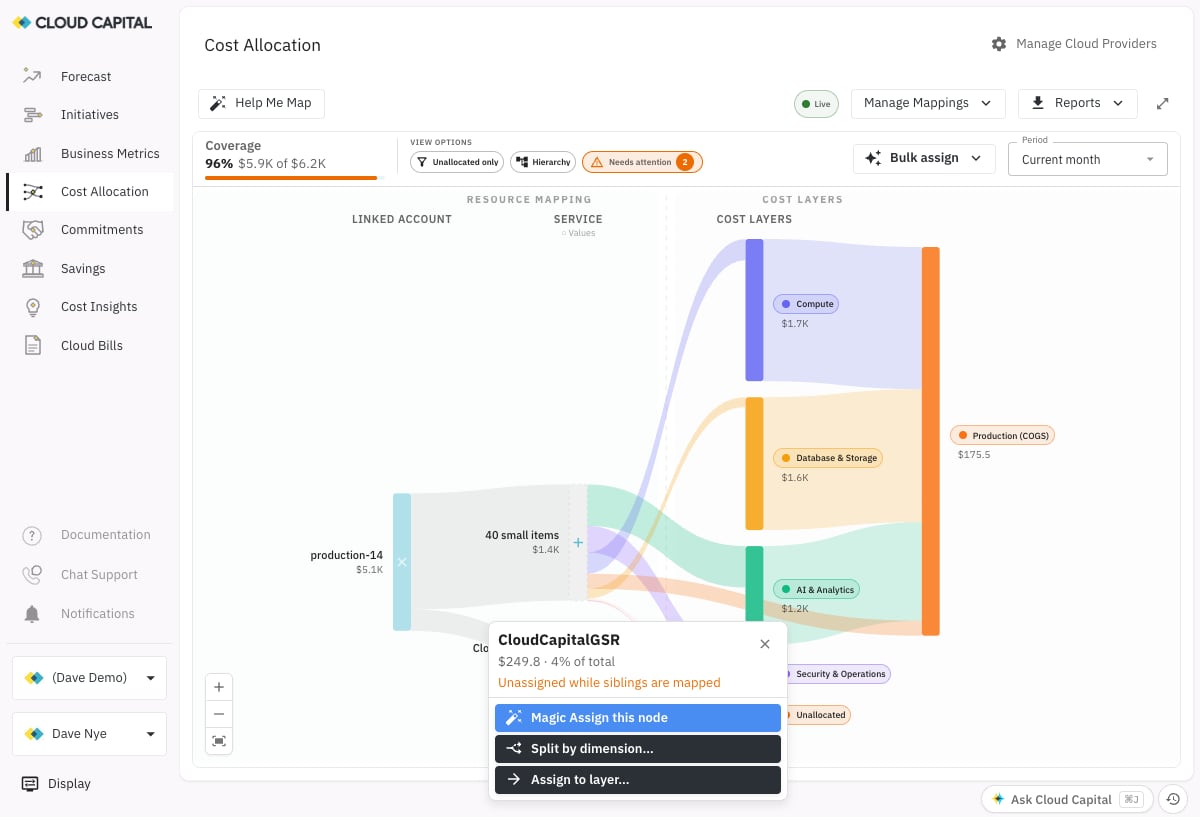
Dismiss the guide and work directly on the canvas. Click any node in the Sankey diagram — a linked account, a service, or a value in a breakdown column — to open a popup scoped to that node. What the popup offers depends on the node’s current state: Unassigned node, with mapped siblings If a node hasn’t been assigned yet but the other nodes in its column have, the popup flags it — Unassigned while siblings are mapped — and offers three actions:- Magic Assign this node — runs the same auto-classification used by Help me map on just this node.
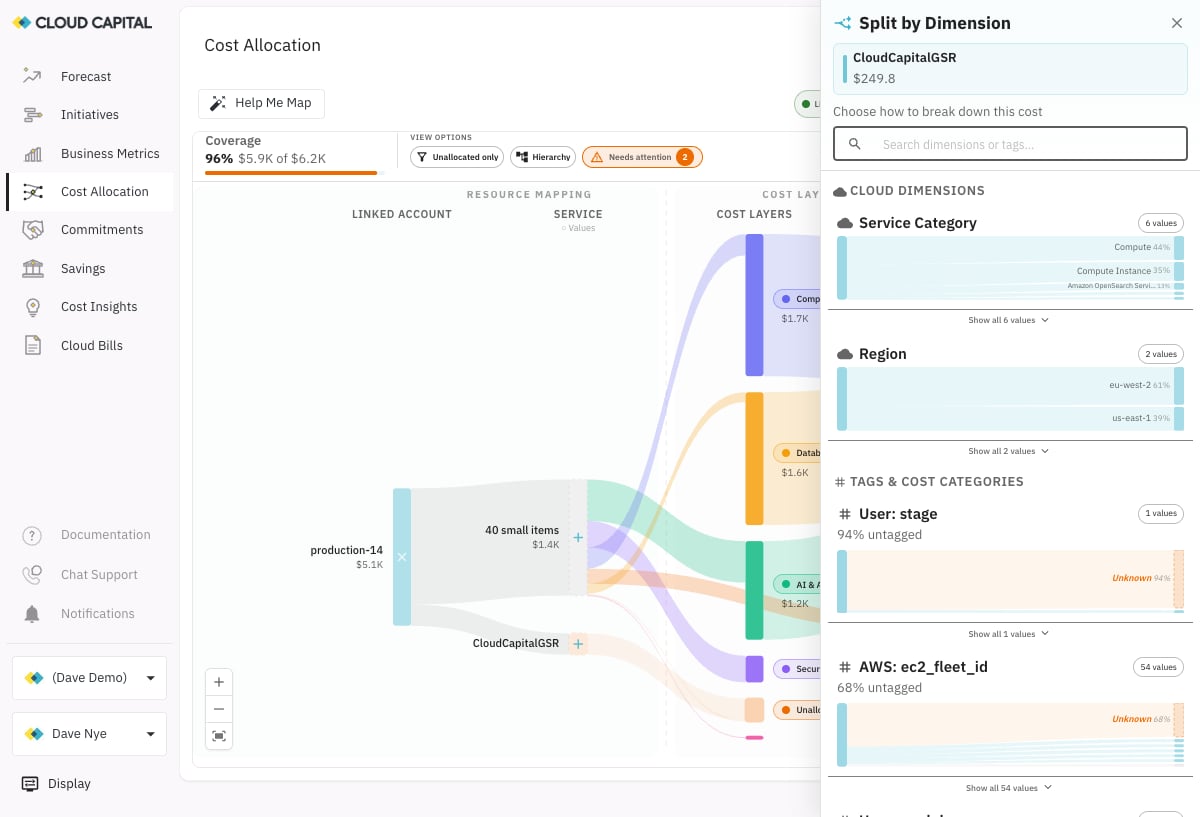
- Split by dimension… — break this node’s spend down further before assigning. See “Splitting by dimension” below.
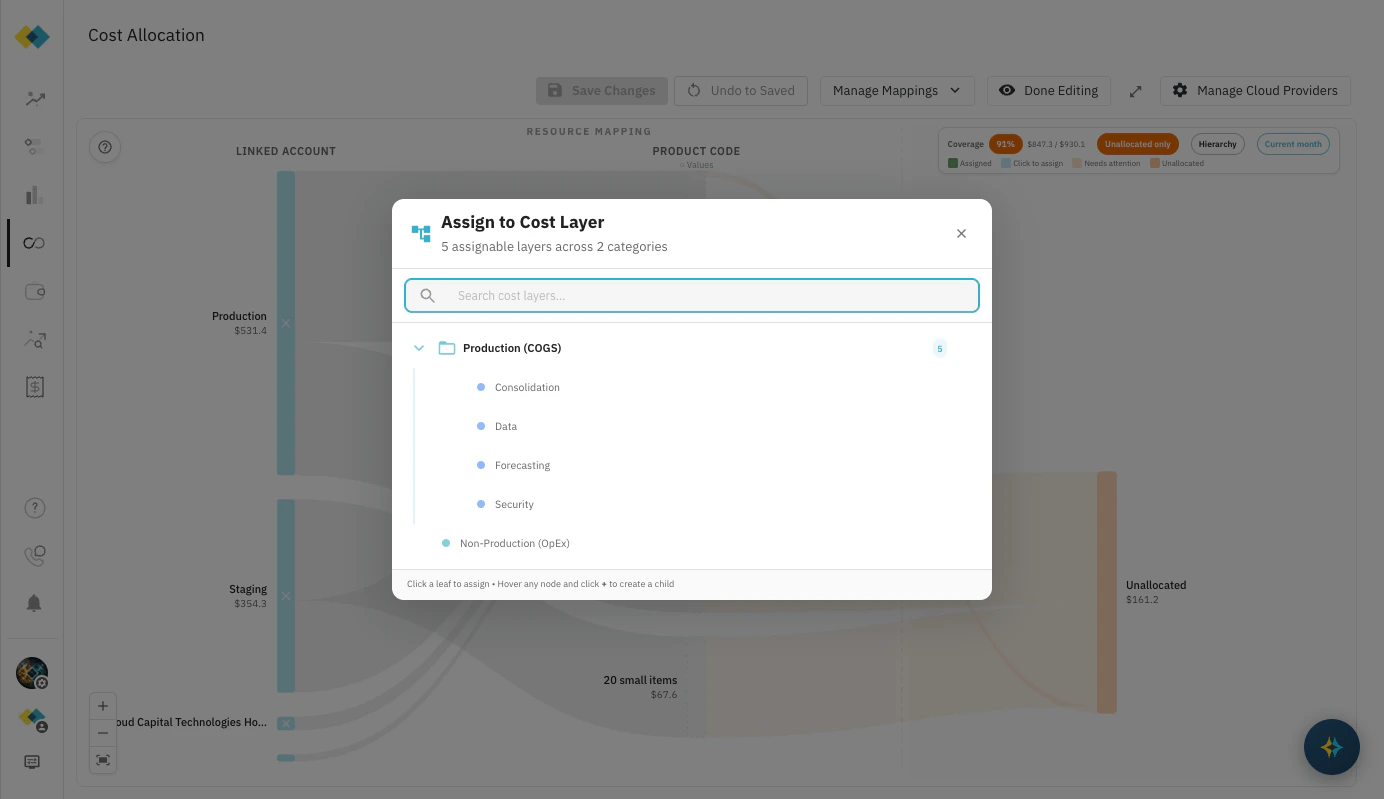
- Assign to layer… — opens the Assign to Cost Layer picker described below.
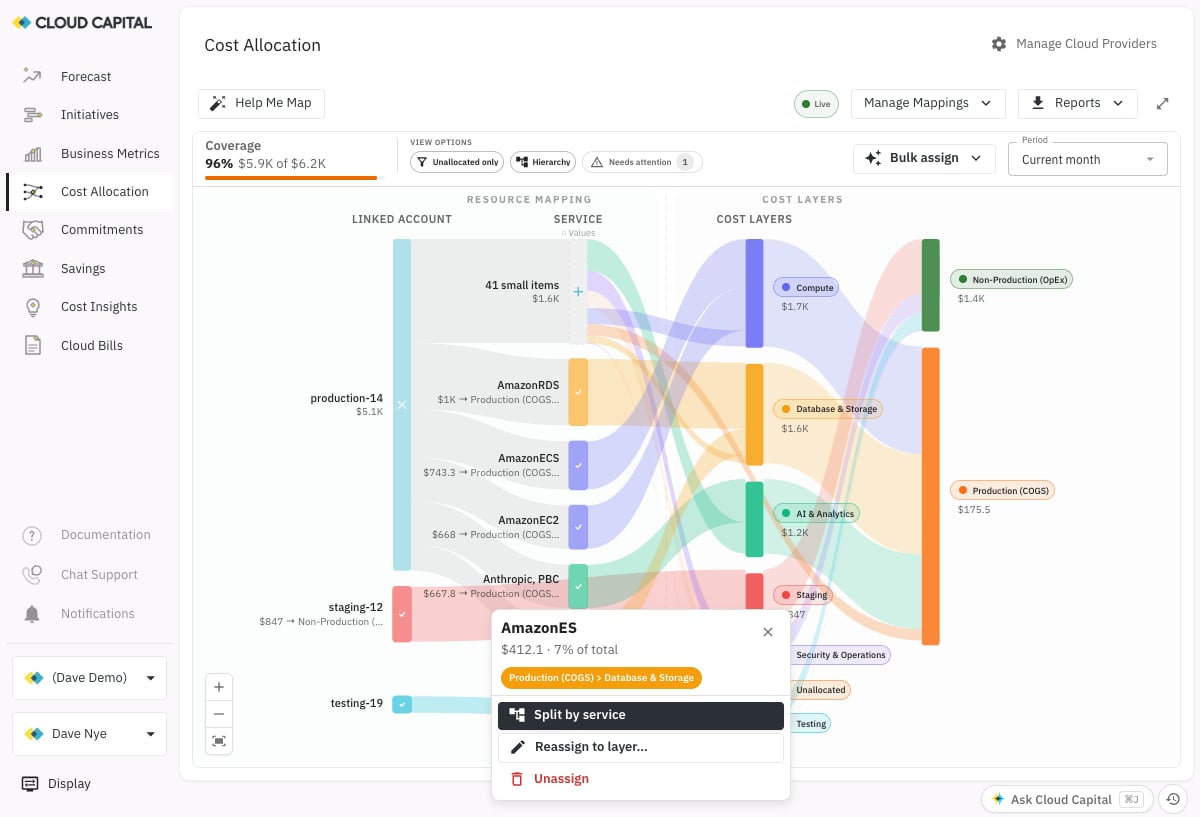
A grouped “N small items” bucket (Cloud Capital’s catch-all for long-tail services) opens a simpler popup instead — Assign manually…, which opens an itemized list where you can assign, move, or unmap each underlying value individually (or Promote one out as its own node), and Magic Assign, which auto-classifies the whole bucket at once.
Canvas controls
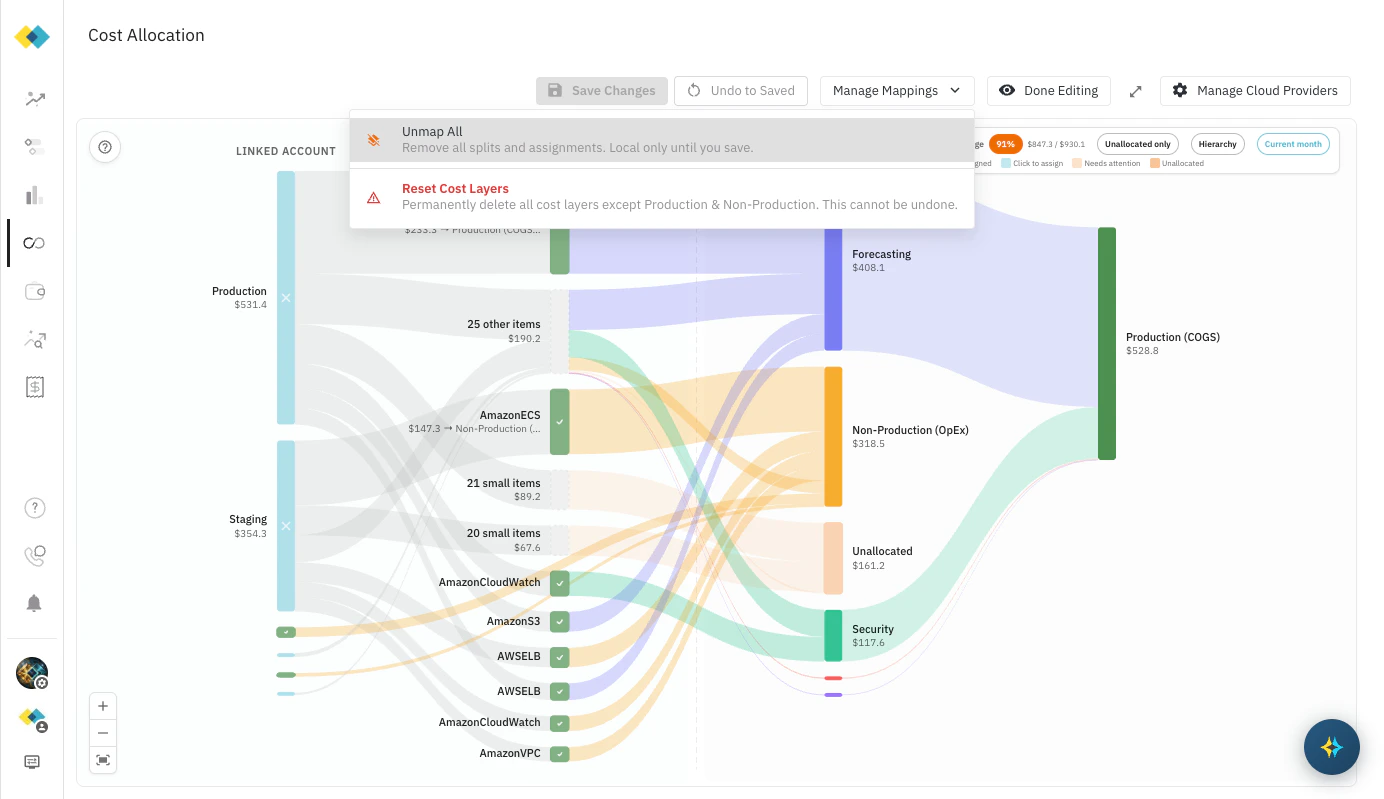
Toolbar
Filters
Saving your work
Changes are local until you click Save Changes in the toolbar. Navigate away without saving and your edits will be lost. Once saved, your Cost Layer assignments feed directly into your Cloud Capital forecast. The structure you create here becomes the foundation your forecast, savings analysis, and commitment proposals are all built on.What’s next
Auto-Mapping Guide
How the Help me map wizard categorises accounts and services — and how to get the best results.
Cost Layers
Review and refine your cost layer structure, add sub-layers, and adjust assignments over time.
Add Business Metrics
Connect business data to drive more accurate cost projections.