

Time to complete: ~10 minutes
Connect your AWS cost data
What Cloud Capital accesses
The Forecasting CloudFormation template creates a read-only IAM role. Cloud Capital uses this role to:The Forecasting role is strictly read-only. No actions that create, modify, or delete any AWS resources are included. Cloud Capital cannot make any changes to your AWS environment through this role.
Before you begin
Setup
1
Create a new Integration in Cloud Capital
From the main dashboard, navigate to Cost Allocation and click Connect Cloud Provider.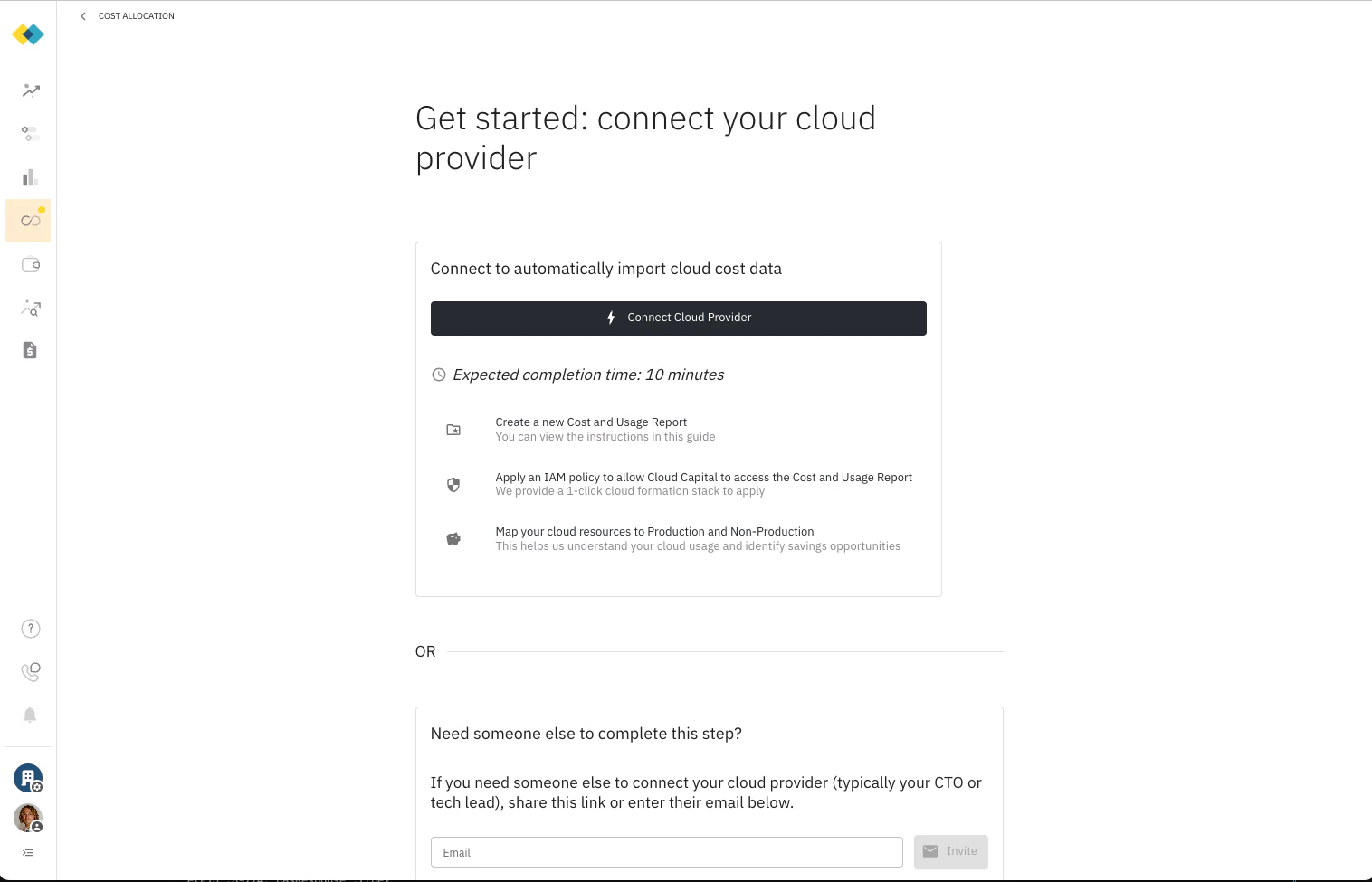
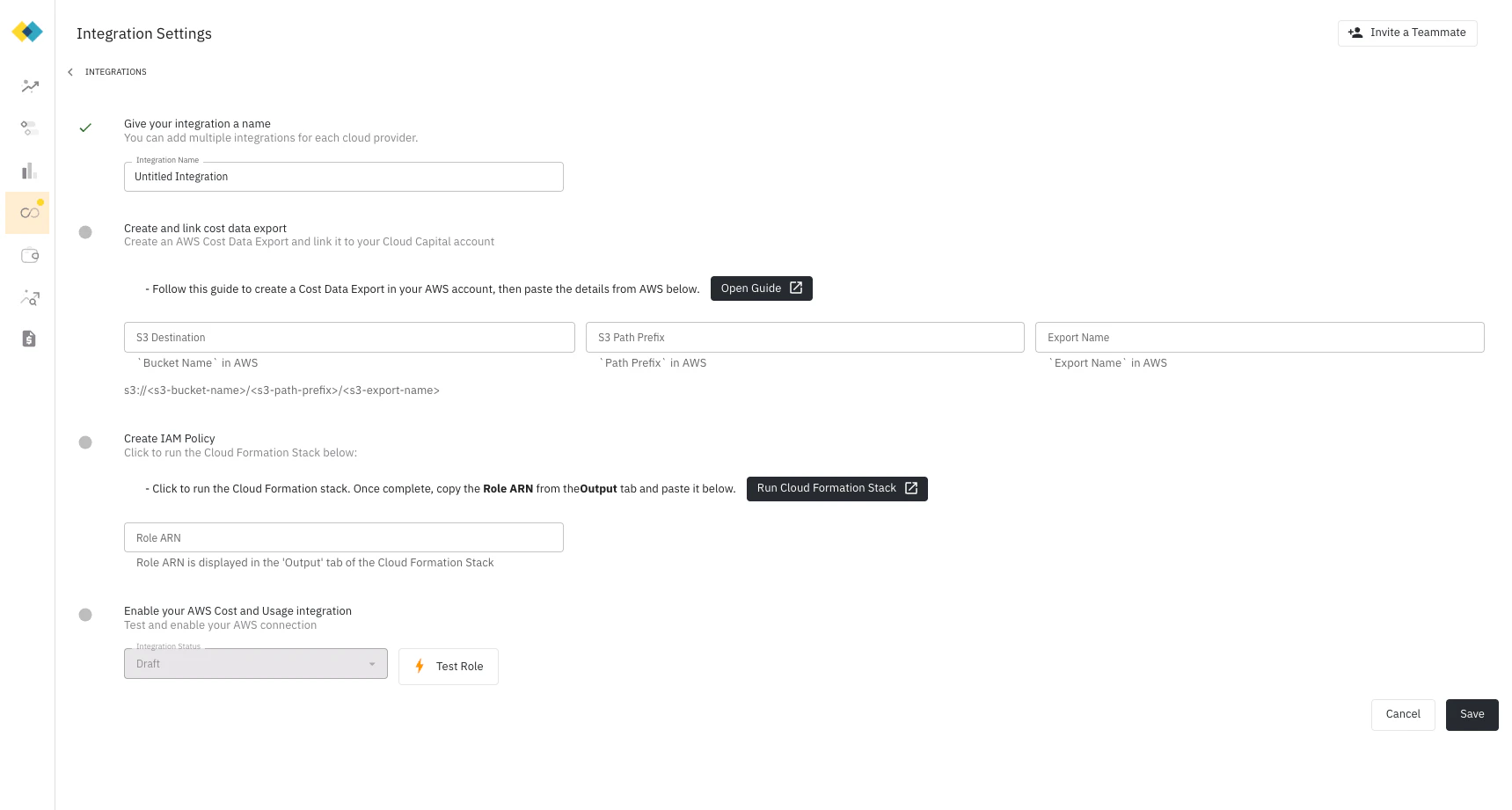
AWS).2
Create a cost data export in AWS
This step walks you through creating a cost data export in the AWS Billing and Cost Management portal.
If you already have a daily CUR 2.0 export running with the settings below, you can use the existing bucket and skip ahead to the next step.
- In the AWS console, navigate to Billing and Cost Management
- Click Data Exports on the left, then click Create
- Select Standard data export
- Give the report a name (e.g.,
cloud-capital-cost-export) — you will enter this name in Cloud Capital
- Format: CUR 2.0 (default)
- Include resource IDs: No (leave unchecked)
- Split cost allocation data: No (leave unchecked)
- Time granularity: Hourly
- Column selection: keep the default
- Compression type and file format: Parquet - Parquet
- File versioning: Overwrite existing data export file
- Choose Configure → Create a bucket (recommended), or select an existing bucket
-
Add an S3 path prefix of
hourly-export
You will need the S3 destination (bucket name + path prefix + export name) in the next step. It is shown directly after creating the report — copy and paste it.
3
Add cost data export settings to Cloud Capital
Copy and paste the Bucket Name, Path Prefix, and Export Name from the previous step into the Integration settings in Cloud Capital.
4
Create the Forecasting IAM role
Under Create IAM Policy, click Run Cloud Formation Stack. Cloud Capital pre-populates the required parameters in the stack — you do not need to enter them manually. This creates a read-only IAM role in your AWS Payer or Management account, scoped to your specific CUR bucket.Once the stack completes, AWS provides a Role ARN. Enter this Role ARN in Cloud Capital.You can review the full policy: aws-cloudformation-forecasting.json
5
Test and enable your integration
Click Test Role to verify that Cloud Capital can access the bucket. If the connection is successful, your Integration status changes to Enabled. Save your integration to activate it.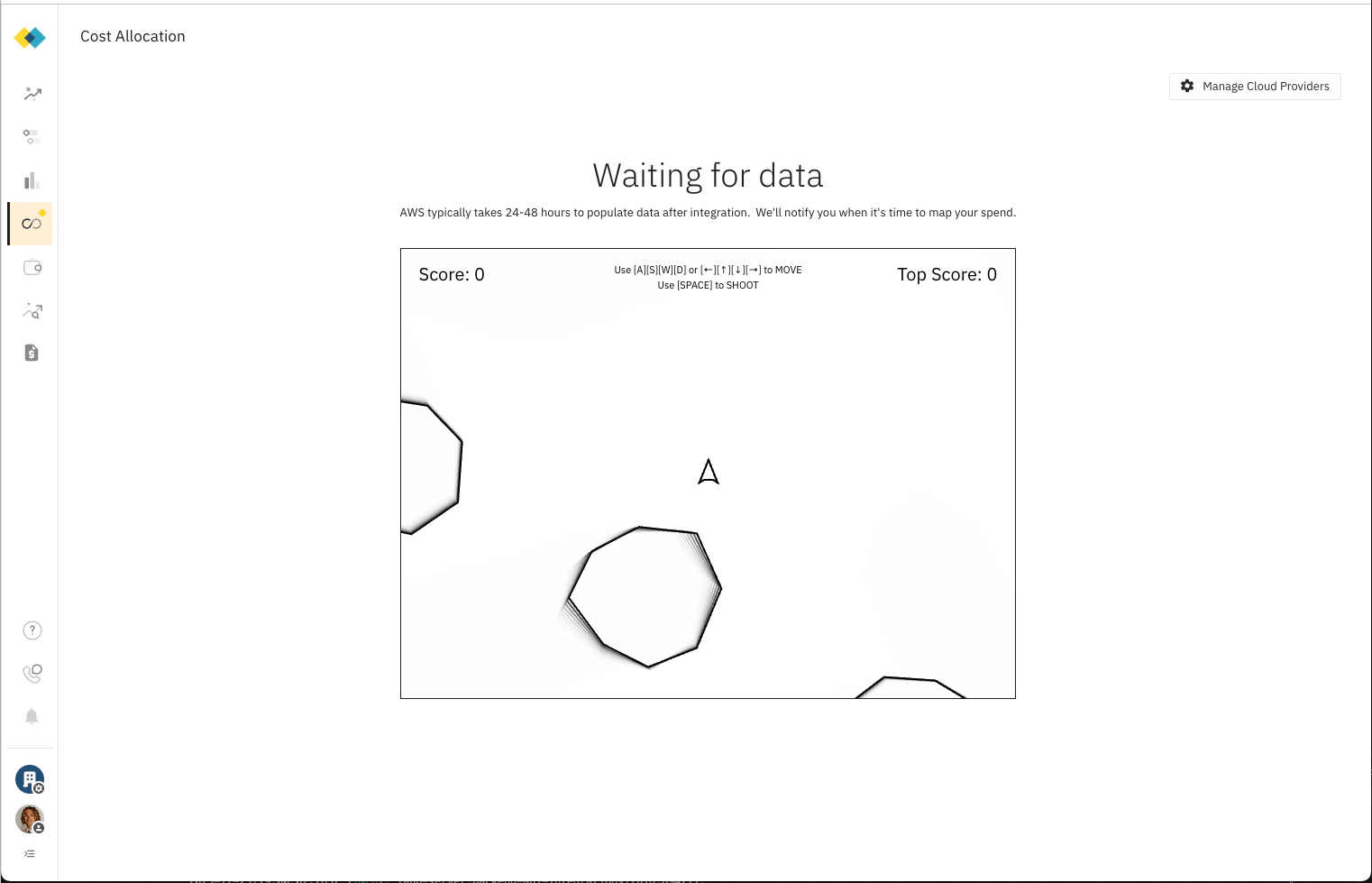
AWS typically takes 24–48 hours to populate the Cost and Usage Report for the first time. After 24 hours, return to the Integration settings to verify that data is being imported before proceeding.
Commitment Optimization customers
If Cloud Capital will be managing AWS Savings Plans and Reserved Instances on your behalf, a second IAM role is required. See Commitment Purchasing Authorization for the full setup.
How the cross-account role works
The Forecasting role uses AWS’s standard cross-account access pattern with an ExternalId condition. Cloud Capital’s AWS account ID and your unique ExternalId are embedded in the role’s trust policy at setup time — meaning only Cloud Capital’s specific AWS account can assume the role, and only when presenting the correct ExternalId. This prevents confused deputy attacks. You can revoke the role at any time by deleting the CloudFormation stack in your AWS console, which immediately removes Cloud Capital’s access. This is a well-established AWS pattern for granting third-party access. For more detail on how cross-account roles and ExternalId conditions work, see How to use an external ID when granting access to your AWS resources to a third party in the AWS documentation.Security and access summary
Security
For a full overview of how Cloud Capital handles data access, encryption, audit logging, and compliance, see the Security page.