How to set the projection methodology for each Cost Layer, and when to use Trend, Fixed Percentage, Flat, or Metric - Auto.
The projection methodology you choose for each Cost Layer directly determines how Cloud Capital forecasts future spend. A well-configured projection gives your finance team a reliable view of where costs are heading — and gives Cloud Capital the signal it needs to surface accurate optimization opportunities.
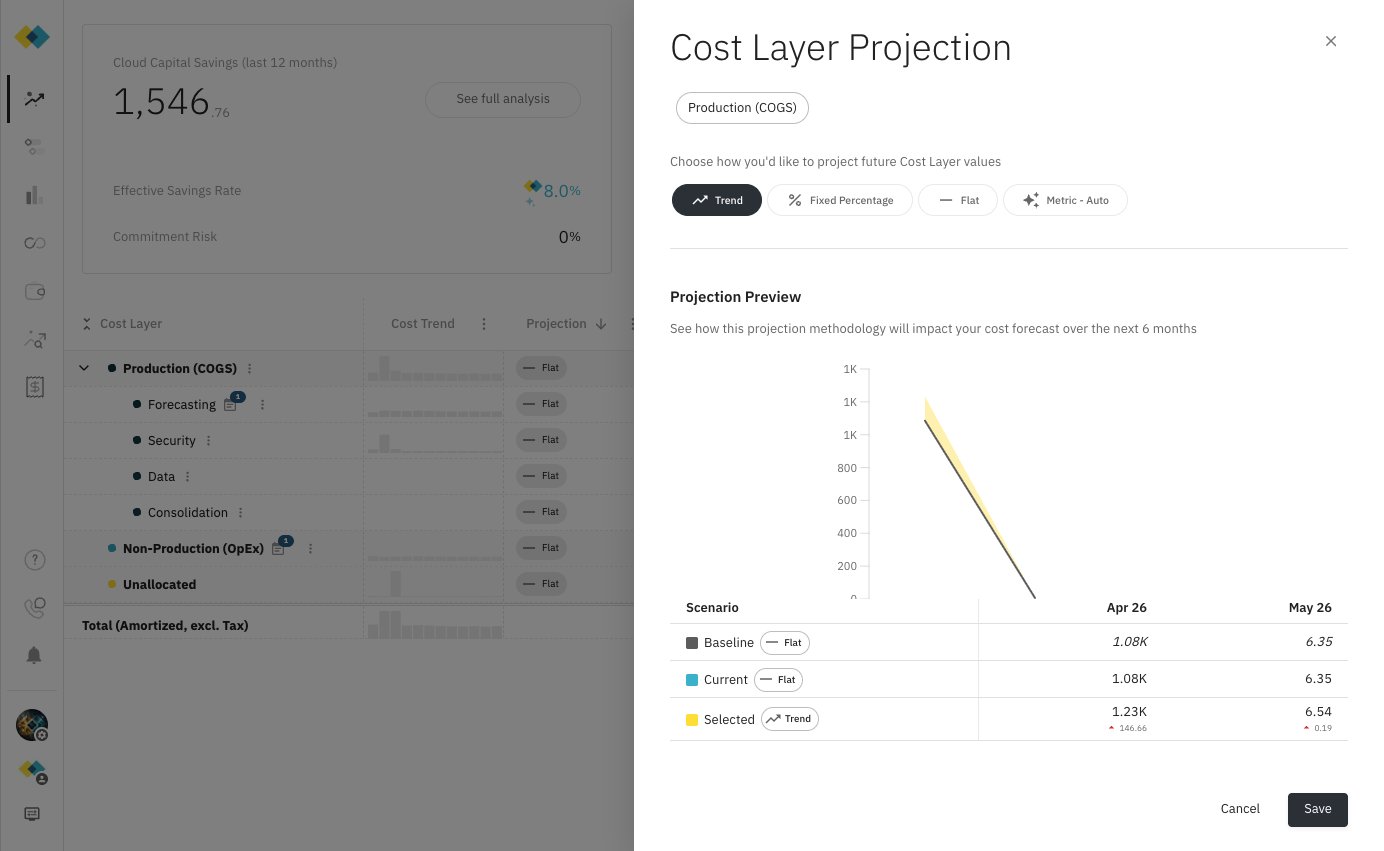
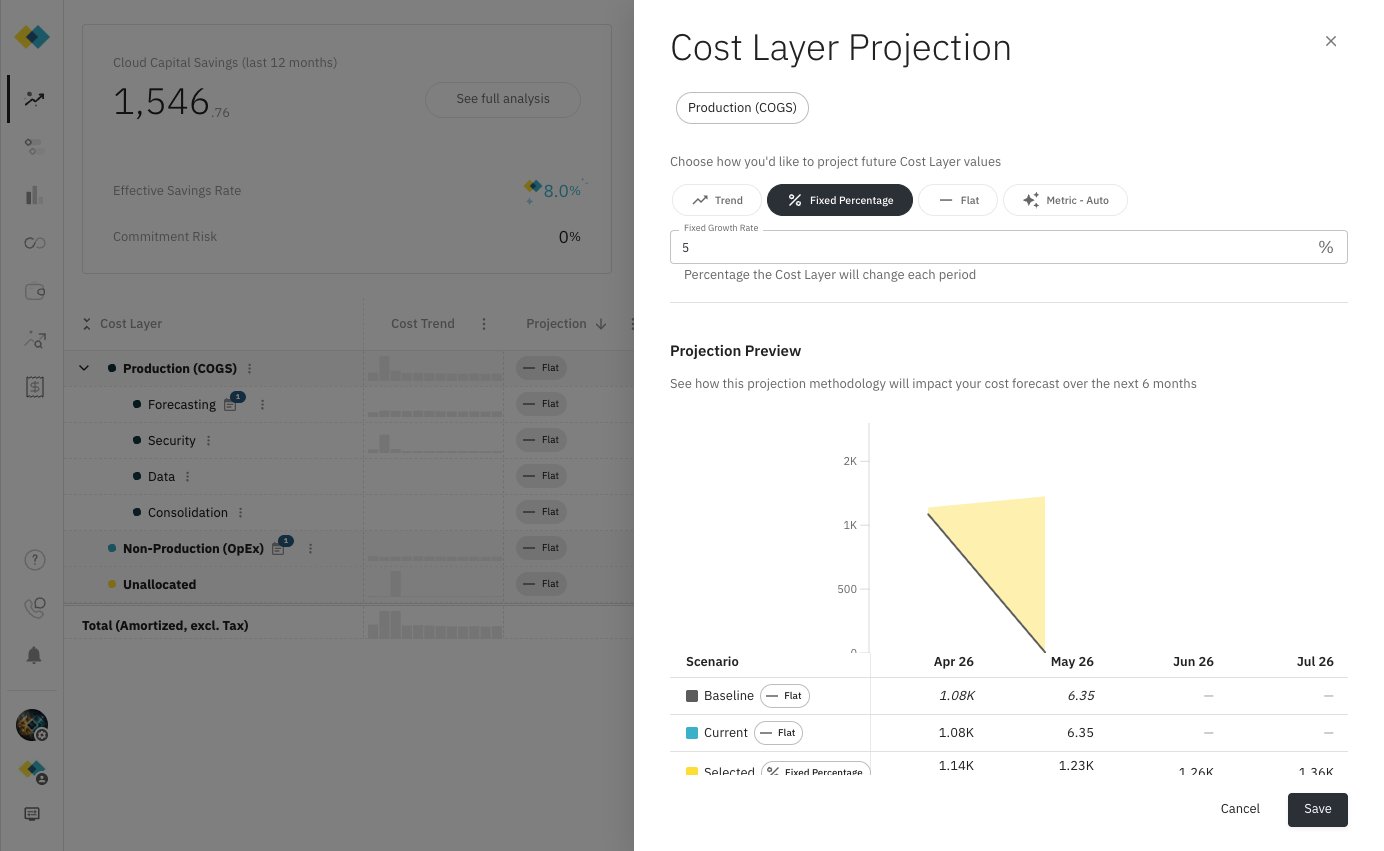
In the Forecast table, each row includes a Projection column. Click any projection indicator (for example, Flat) to open the Cost Layer Projection panel for that layer.The panel shows:
The Cost Layer you are editing (for example, Production (COGS))
Four projection type buttons to choose from
A Projection Preview at the bottom showing how your selection will affect the next 6 months of forecast, compared against the current baseline
Hover over any projection type button (without clicking) to see a mini chart and short description of how that methodology works. Click to select it and update the preview.
How it works: Cloud Capital extrapolates the historical cost trend from your recent actuals forward into the forecast. If spending has been rising or falling consistently, the Trend projection continues that trajectory.When to use it: Use Trend when a Cost Layer’s growth pattern is driven by organic factors — gradual scaling, increasing usage over time — and you expect that pattern to continue. It is less reliable for layers with highly variable or seasonal spend, or when a recent spike or anomaly would distort the trend line.
How it works: The Cost Layer grows by a fixed percentage you specify each period (month or quarter), compounding indefinitely. When you select this type, a Fixed Growth Rate field appears — enter the percentage rate the layer will change each period.When to use it: Use Fixed Percentage when you have a known growth rate — for example, a contractual commitment, a planned infrastructure expansion at a defined rate, or a business assumption provided by finance. A negative percentage models planned reductions (for example, -10% per month during a cost-reduction initiative).
How it works: Future spend is projected equal to the most recent billing period, with no growth. Day-count differences between months are accounted for automatically.When to use it: Flat is the default for all Cost Layers and is a safe starting point before you have enough history or business metric data to use a more sophisticated methodology. It is also the right choice for truly fixed infrastructure — reserved capacity, fixed SaaS contracts, or pre-production environments where spend does not scale with business activity.
When insufficient data is available for a more advanced projection type, Cloud Capital will fall back to Flat automatically. You will see a notice in the panel when this applies.
How it works: Future spend is projected based on a Business Metric you have defined (for example, customer count, active users, or revenue). Cloud Capital correlates your historical cost data against the metric’s historical values to infer how costs move relative to the metric — then uses the metric’s projected future values to drive the cost forecast forward.When to use it: This is the most powerful projection type for layers where business growth directly drives cloud cost — typically production workloads, data pipelines, or customer-facing services. A well-correlated business metric makes your forecast dynamically responsive to changes in your business plan rather than relying on static assumptions.This is Cloud Capital’s recommended projection type for any Cost Layer with a meaningful business metric. We’re actively gathering feedback on correlation quality — if the inferred correlation doesn’t look right for your data, let us know.
When Metric - Auto is selected, you also choose how the metric is applied:
Option
How it works
Auto (recommended)
Cloud Capital infers the correlation coefficient from your historical data. If costs scale at 0.6× the rate of the metric, the model captures that ratio rather than assuming 1:1. Requires 3+ months of overlapping actuals and metric data.
Direct: 1:1
Metric percentage changes are applied directly to costs at a 1:1 ratio. No historical data is required — useful when you are launching a new Cost Layer or metric without enough history for Auto correlation.
If your business metric does not yet have 3 or more months of overlapping data with the Cost Layer’s actuals, you will see:
Insufficient data to calculate cost impact. Requires 3+ months of overlapping data.
In this case, Cloud Capital falls back to a Flat projection until enough data accumulates. You can accelerate this by importing historical metric data or switching to Direct: 1:1 correlation, which works without historical overlap.
You can set a projection at any level of your Cost Layer hierarchy.
Setting a projection on a parent layer (for example, Production) applies that methodology to all child layers that do not have their own projection set. Children inherit the parent’s selection.
Setting a projection on a child layer overrides the parent for that specific layer only. Layers above it aggregate the children’s individual projections.
This means you can use a simple Flat projection at the top level as a default, and then dial in more precise Metric - Auto projections for specific sub-layers where you have good business metric coverage — giving you granular control exactly where it matters.
For best forecast accuracy, configure projections at the most granular level where you have reliable data or business assumptions. The more precisely each Cost Layer is projected, the more actionable the forecast becomes for your finance team and for Cloud Capital’s optimization recommendations.
Assistant
Responses are generated using AI and may contain mistakes.