

Claude API support is in Beta. To enroll, request access from your Cloud Capital Customer Success Manager. Once your account is enabled, Claude API appears as an option on the New Integration page. If you don’t see it yet, reach out to your Customer Success Manager.
What Cloud Capital accesses
Cloud Capital uses the key only to read cost data. It does not create, modify, or delete resources in your Anthropic Console, and this integration does not enable commitment purchasing or billing transfer.
What’s available with Claude API today
Before you begin
- Choose the right product — Use Claude API if you get a developer bill at console.anthropic.com for apps, agents, and API keys (
sk-ant-…). If your team uses Claude.ai Enterprise seats, connect Claude.ai instead. - Admin access — You need permission to create a Console Admin API key in your Anthropic Console organization settings. Admin keys start with
sk-ant-admin. - Not covered here — Max/Pro and Team (non-Enterprise) plans. Amazon Bedrock or AWS Marketplace Anthropic usage stays on your AWS integration — connecting both paths for the same spend can double-count.
- Wrong key types fail — Inference keys and Claude.ai Analytics keys are rejected. Paste only a Console Admin API key.
Setup
1
Create a new integration in Cloud Capital
In Cloud Capital, go to the Integrations page — from Cost Allocation, use Manage Cloud Providers. Click Create New Integration and choose Claude API.The new integration opens on the Integration Settings page. Give it a descriptive name — you can add multiple Claude API integrations, so the name is how you’ll tell them apart.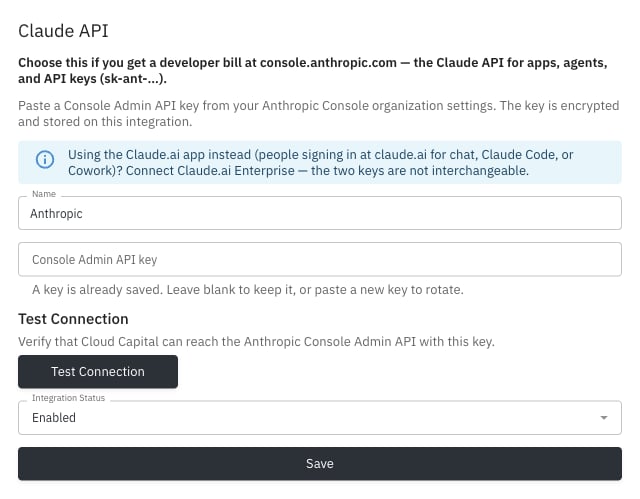
2
Create a Console Admin API key in Anthropic
In the Anthropic Console, open your organization settings and create a Console Admin API key.The key must start with
sk-ant-admin. Copy it once — Anthropic shows the full value only at creation time.Do not use an ordinary inference key (
sk-ant-api03-…) or a Claude.ai Analytics key (sk-ant-api01-…). Those call different APIs and will fail the connection test.3
Paste the key and test the connection
On the Integration Settings page:
- Paste the Console Admin API key into the Console Admin API key field.
- Click Test Connection. Cloud Capital verifies it can reach the Anthropic Console Admin API with this key.
- After a successful test, set the integration status to Enabled (or leave it if the app already switched it for you).
- Click Save.
You must complete a successful connection test before you can enable a new integration. To rotate a key later, paste a new key and re-test; leave the field blank to keep the stored key.
What to expect after setup
- Data timing — Cost data is ingested on a scheduled nightly cycle, not instantly on save. Expect your first data in dashboards within about 24 hours of a successful connection.
- Empty at first is normal — If the Admin API has little or no recent usage, dashboards may look empty until spend appears and the next nightly cycle runs.
- Forecast only — Claude API spend appears in forecasting and cost insights. Commitment purchasing and billing transfer are not part of this integration.
Troubleshooting
Security
For a full overview of how Cloud Capital handles data access, encryption, audit logging, and compliance, see the Security page.