What a saved report remembers
Opening a report restores the view, then loads the latest cost data for those settings.Dates
If you save while a preset is selected, the report stores the preset rather than the calendar dates. Opening it later resolves that preset against today.
Last 3 months saved in January still means the latest three months when you open the report in June.
A custom range is pinned. Opening the report returns the same start and end dates you chose.
Save the current view
1
Set up the view
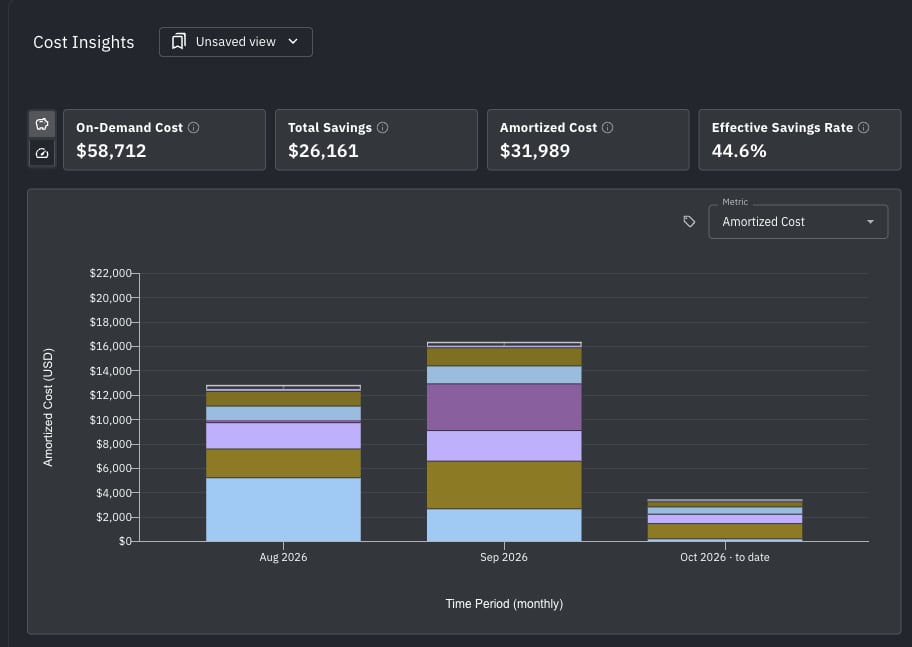
On Cost Insights, set the filters, group by, metric, Compare to previous period, credits, currency precision, and date range you want to keep.
2
Open the menu
Select the button next to the Cost Insights title. It reads Unsaved view when no report is open.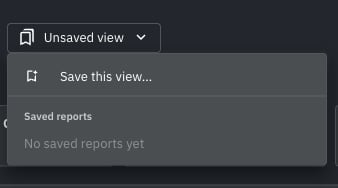
3
Save this view
Choose Save this view…. Enter a name. A description is optional and appears under the name in the list.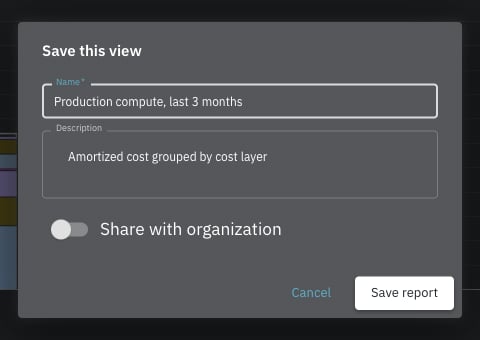
4
Choose who can open it
Leave Share with organization off to keep the report private. Turn it on so every member of your organization can open it.
5
Save
Click Save report. The button then shows the new name, and that report is checked in the Saved reports list. You see Report saved.
Open a saved report
Open the same menu and choose a report under Saved reports. If you have not saved one yet, the list reads No saved reports yet. If the list cannot be loaded, it reads Could not load saved reports — close the menu and open it again.- A check mark shows the report that is open.
- A globe icon means Shared with your organization.
- The description, if you added one, appears under the name.
Update a report you own
Change the view after opening a report you created and the amber dot appears. Save changes shows in the menu only then, and only on a report you created. It writes the current view over that report. The name, description, and sharing setting stay as they are. You see Report updated.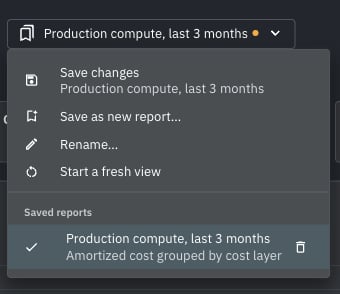
Rename a report or change who can see it
With a report you own open, choose Rename…. You can change the name, the description, and Share with organization. Click Save changes. Renaming does not change filters or the date range. To update those, change the view and choose Save changes from the menu.Share with your organization
New reports are private. Only you see them under Saved reports, and only you can open a link to them. Turn on Share with organization when you save or rename a report to let every member of your organization open it. A globe marks shared reports in the list. A teammate who opens a shared report can look at it and choose Save as new report… to keep their own copy. They cannot rename it, save over it, change who it is shared with, or delete it. Those actions stay with the person who created the report.Start a fresh view
Start a fresh view appears while a report is open. It stops treating the screen as that report. The button returns to Unsaved view, and the report is removed from the address. Your filters, grouping, metric, and date range stay as they are. You can keep exploring, or save the screen as a new report, without writing over the one you had open.Delete a report
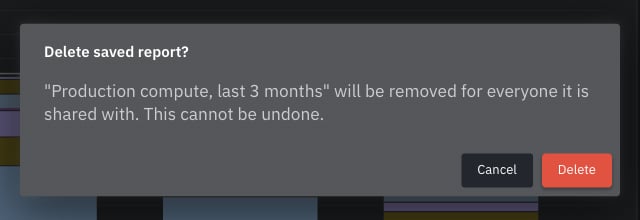
In the list, Delete appears on reports you own. Confirm Delete saved report?.