- Which initiatives are included, and the impact of those initiatives
- How individual parts of the forecast are projected
- Which metrics are used to project growth
- What the values of those metrics are
Scenarios
Every organization has a Base forecast. That is the forecast configuration itself. Any other scenario records only how its assumptions differ from base. The bar names the scenario on screen. Its color tells you what edits will do.
Creating, deleting, and renaming, and cost allocation, happen in the base forecast. Those are shared by every scenario. The control says to switch to Base when an action is only available there.
Each difference from base is a change you can switch off. A change that is off stays in the list and is left out of that scenario’s forecast.

Adopt
Adopt makes the scenario you are viewing the core forecast. Both scenarios keep their own changes, and adopting the previous one again switches back. Only an organization admin can adopt. Adopting changes what Forecast, Initiatives, and Business Metrics open on. Commitment buying keeps reading the base forecast. The base forecast and the core forecast cannot be archived. Restore an archived scenario from the archive icon on the Scenarios tab.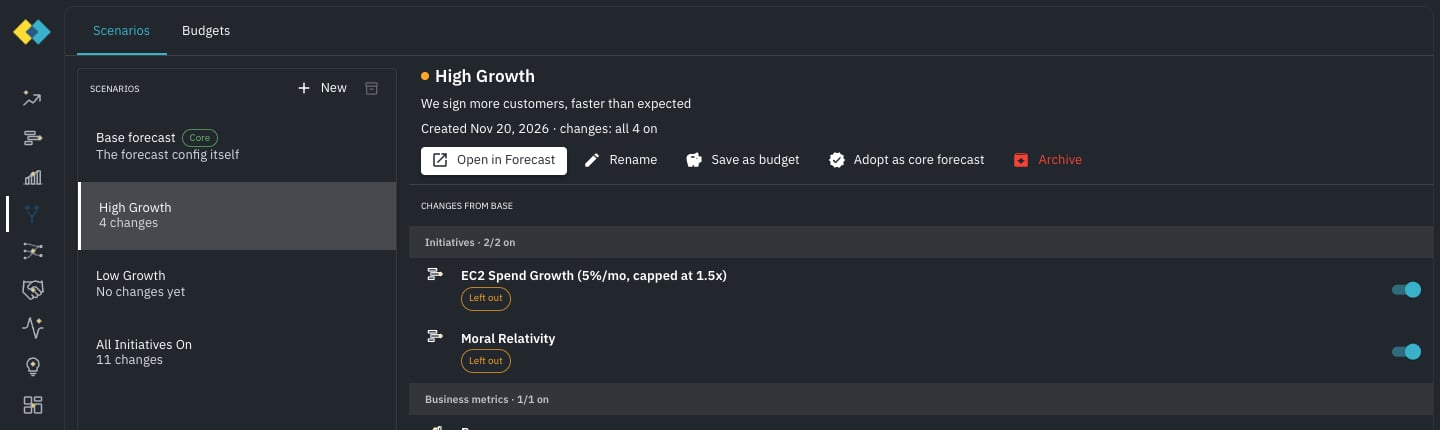
Budgets
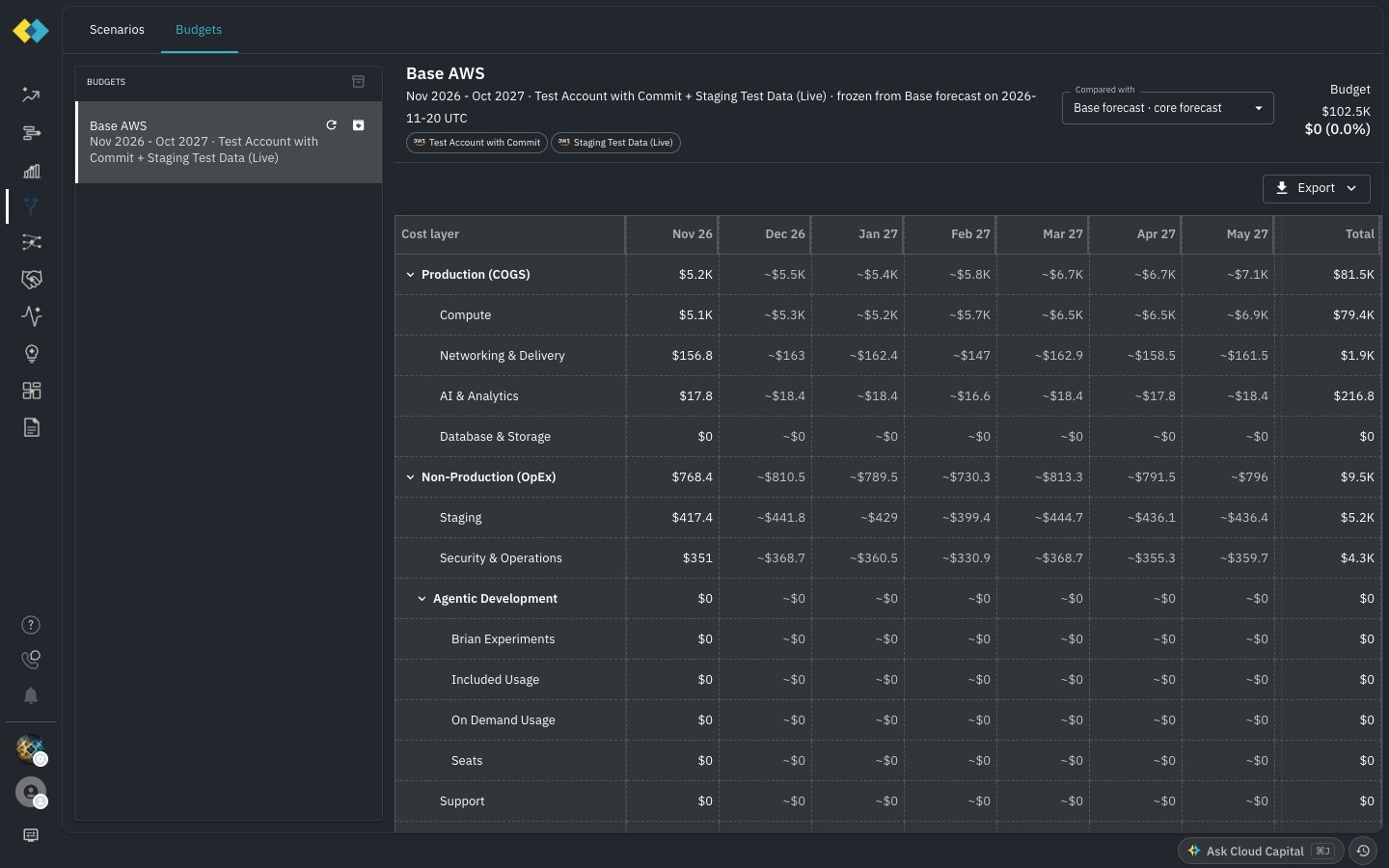
Save a budget from the scenario you are viewing. You name it, pick a period, and choose the integrations or vendors it covers. Later edits to the scenario do not move the budget, and actuals that arrive afterward are what you compare against it. An integration added later stays out of the budget until you re-baseline. From the scenario bar, open Compare to… and choose Save “…” as a budget…. On the Scenarios tab, use Save as budget.Compare
Compare to… sets what the scenario on screen is measured against: another scenario, or a budget. Against a budget, the variance is your actuals and the current scenario versus the frozen forecast. Spending over the budget is marked over; spending under it is marked under. The Forecast chart draws the reference beside each period. A budget only compares over the integrations it covers. Choosing one from Compare to… switches the page to those integrations. If the page is already showing a wider set, the bar offers Show the budget’s integrations instead of a variance, and the comparison is drawn only after the page matches the budget. On the Budgets tab, select a budget to see the comparison by cost layer and month. Compared with chooses the scenario measured against that budget. It starts as the core forecast.